> ## Documentation Index
> Fetch the complete documentation index at: https://docs.pathors.com/llms.txt
> Use this file to discover all available pages before exploring further.
# LINE Bot 整合快速入門指南
> 學習如何在 Pathors 中快速整合 LINE Bot,包括 Messaging API、Channel Secret、Access Token 獲取等
## 概述
本教學將指導你如何在 Pathors 中整合 LINE Bot,包含 provider 建立、Messaging API、LINE login、access token、channel secret 獲取與 webhook 設置。
## 步驟 1:建立 Provider
1. 前往 [LINE Developers 控制台](https://developers.line.biz/console/)
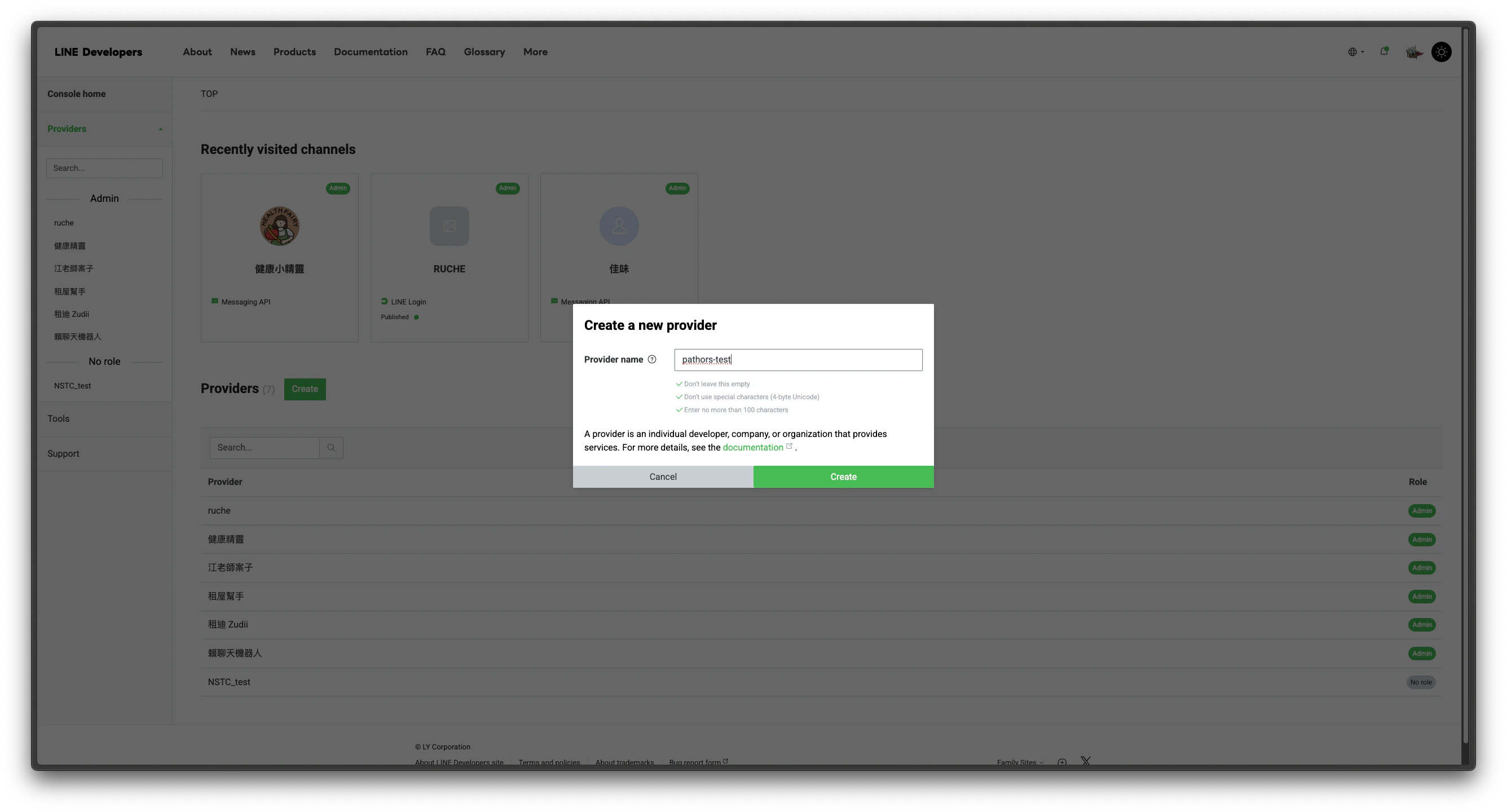
2. 點擊「Create a new provider」,輸入 provider 名稱(只能輸入中文)
 ## 步驟 2:建立 Messaging API
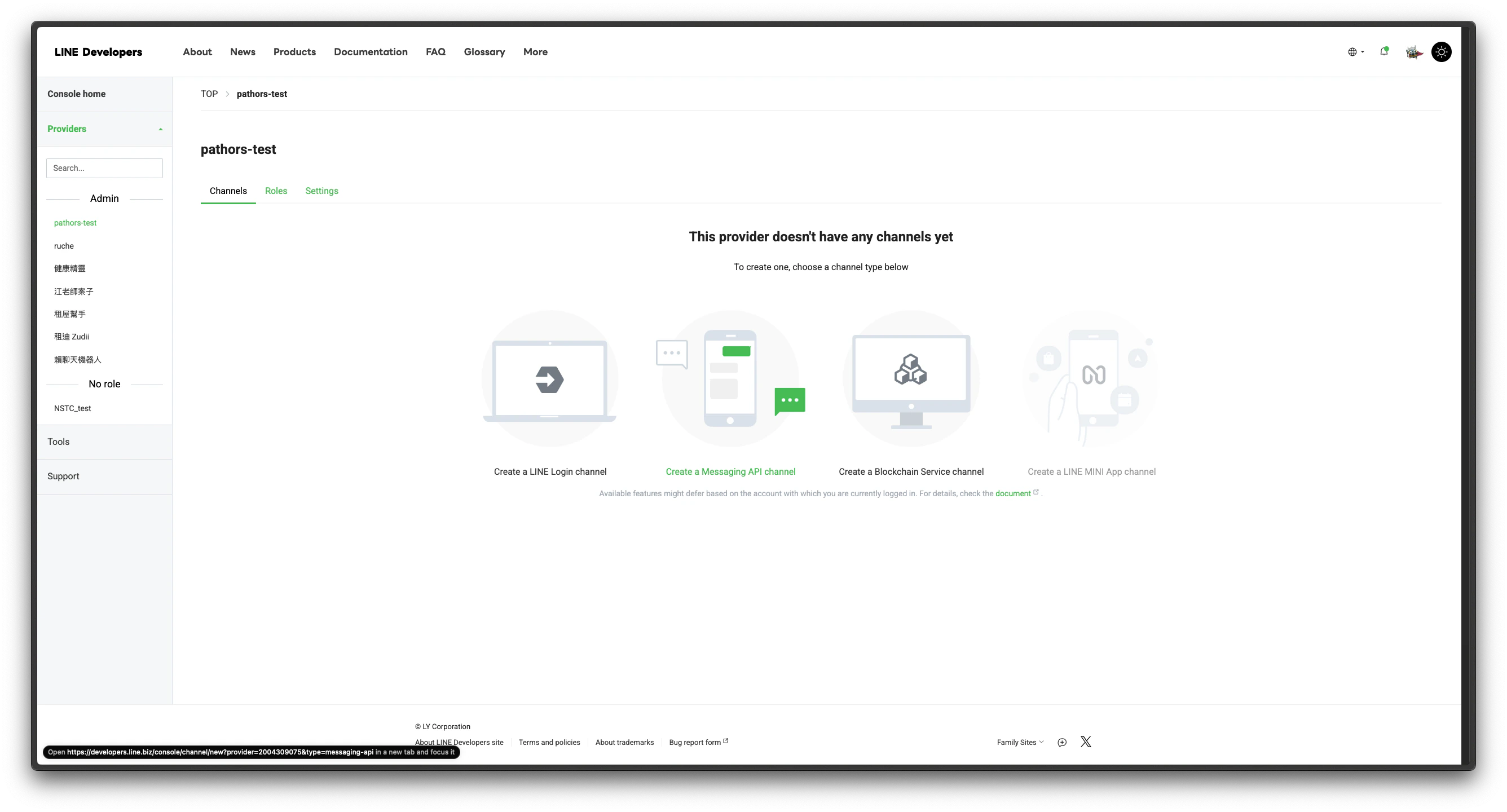
1. 由於 Messaging API 已改版,需前往 [專用表單](https://entry.line.biz/form/entry/unverified) 創建 Messaging API
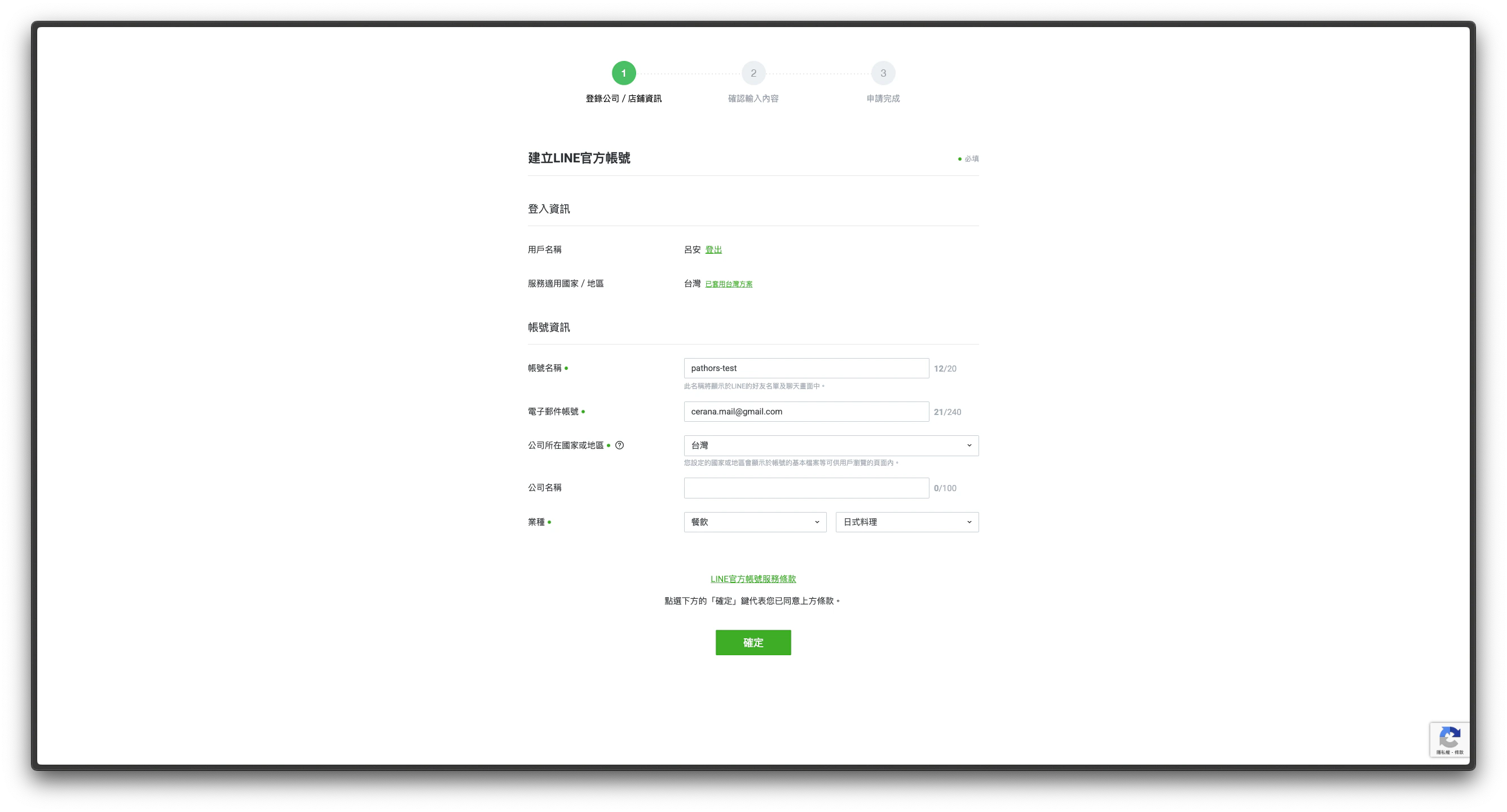
2. 填寫相關資料(帳號名稱、郵箱、公司信息等),提交後即可建立
## 步驟 2:建立 Messaging API
1. 由於 Messaging API 已改版,需前往 [專用表單](https://entry.line.biz/form/entry/unverified) 創建 Messaging API
2. 填寫相關資料(帳號名稱、郵箱、公司信息等),提交後即可建立
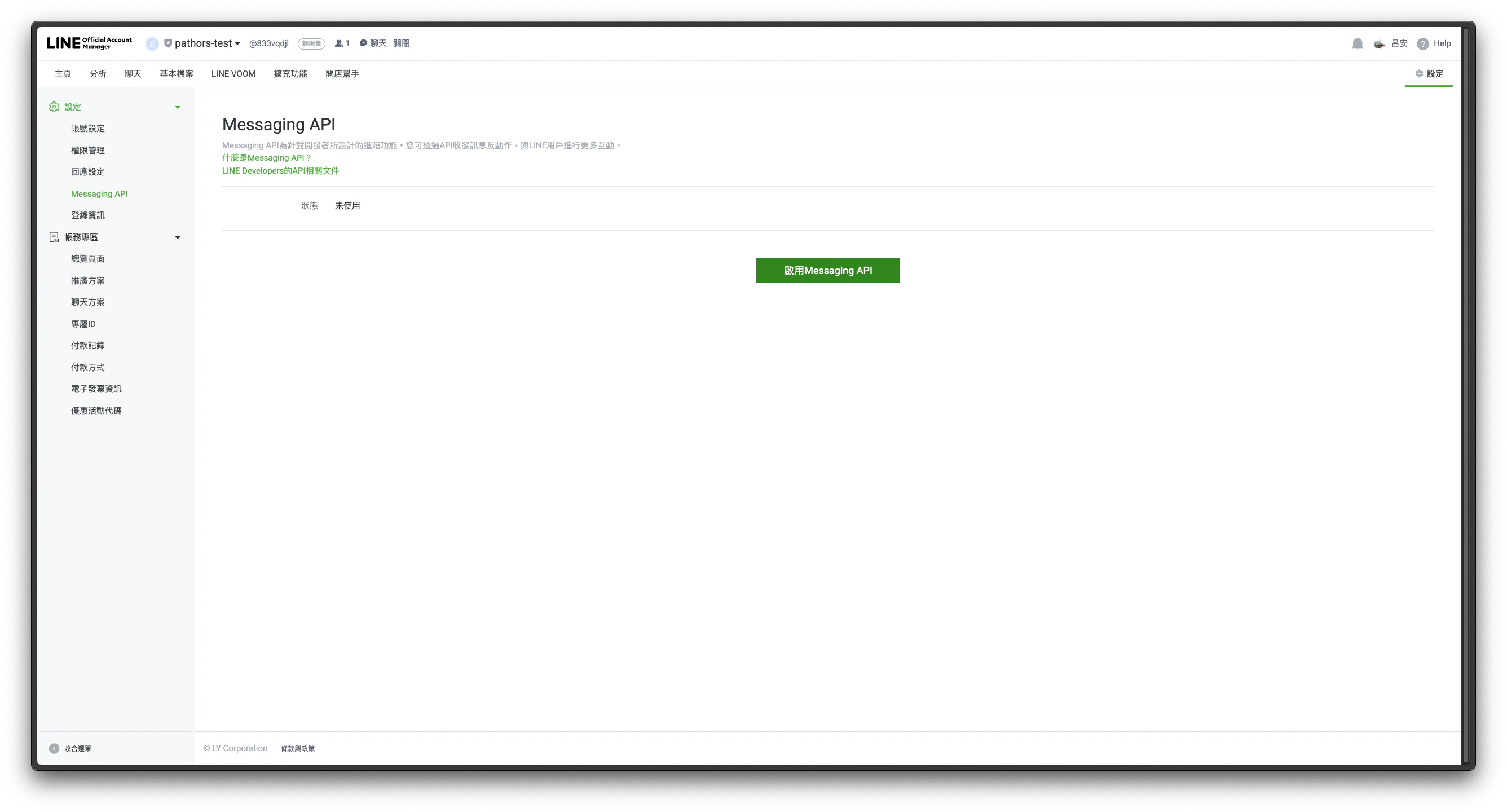
 3. 建立後,需在頁面點擊「啟用 Messaging API」
 ## 步驟 3:建立 LINE login
1. 在 provider 下選擇「Create a LINE Login channel」
2. 按照頁面指引填寫相關信息
## 步驟 4:取得 Channel Secret 與 Access Token
1. 前往 [LINE Biz 管理後台](https://manager.line.biz/account/)
2. 選擇剛剛創建的 Messaging API
## 步驟 3:建立 LINE login
1. 在 provider 下選擇「Create a LINE Login channel」
2. 按照頁面指引填寫相關信息
## 步驟 4:取得 Channel Secret 與 Access Token
1. 前往 [LINE Biz 管理後台](https://manager.line.biz/account/)
2. 選擇剛剛創建的 Messaging API
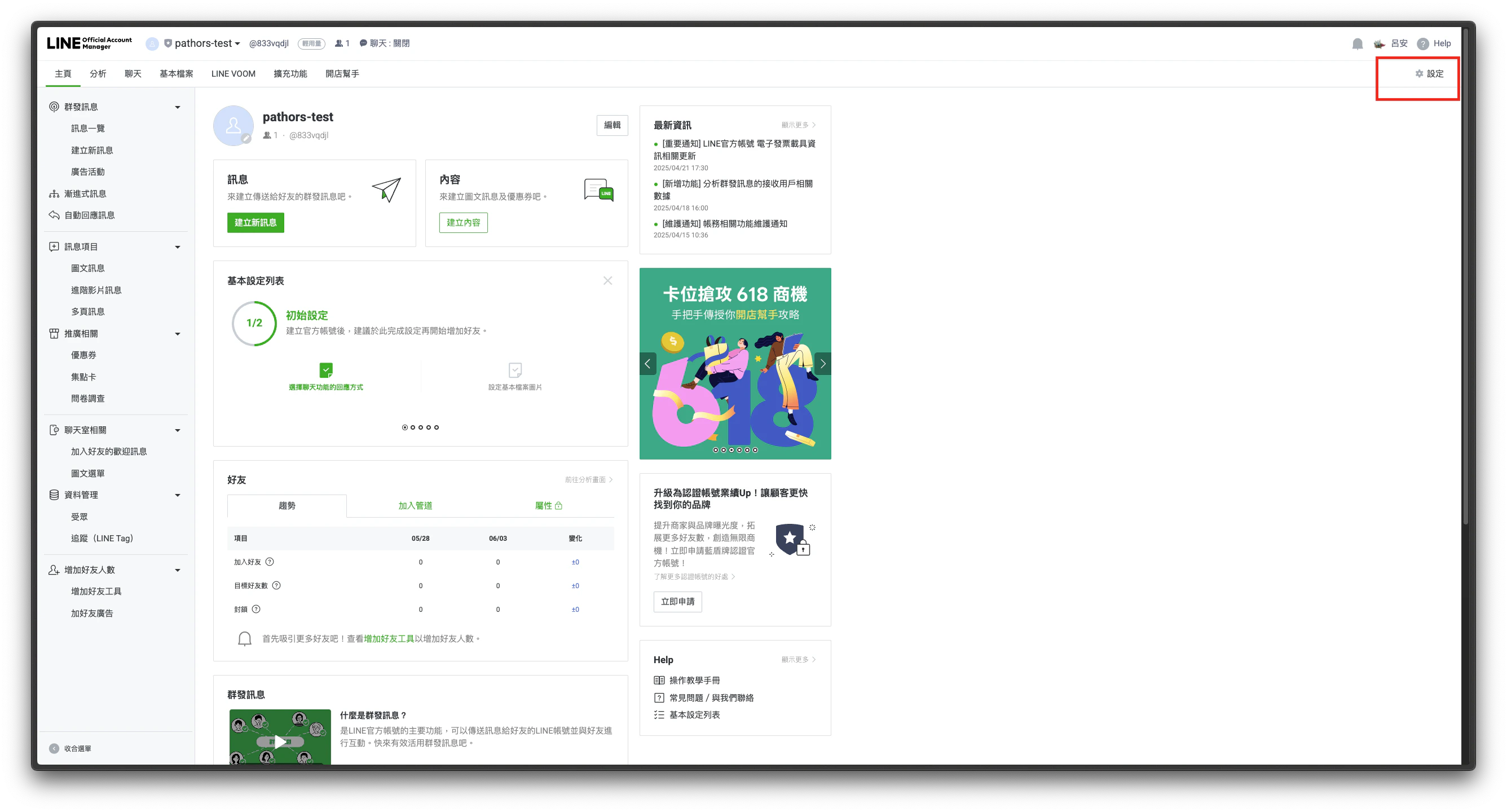 3. 點擊右上角「設定」
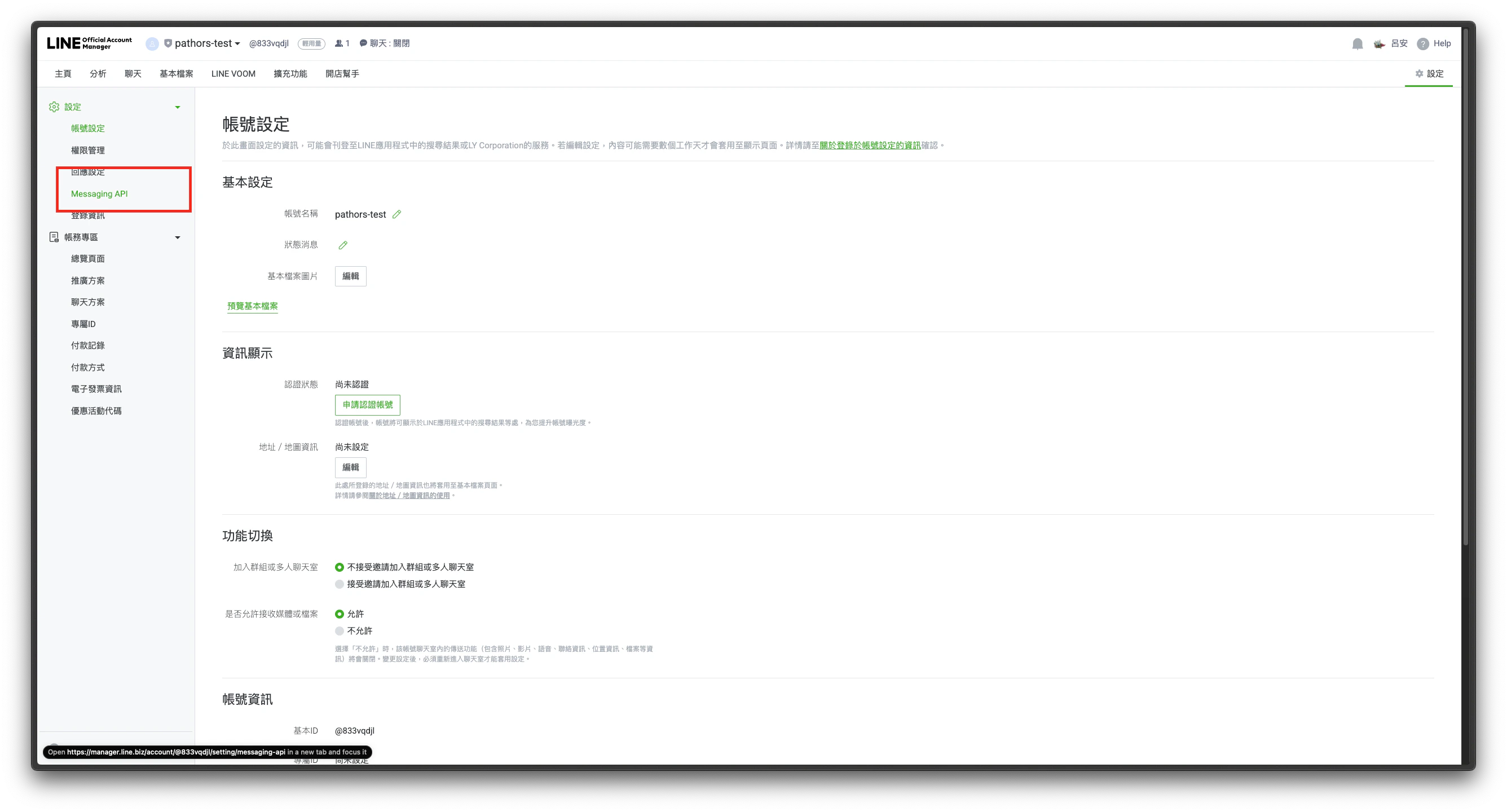
4. 在左側菜單選擇「Messaging API」
3. 點擊右上角「設定」
4. 在左側菜單選擇「Messaging API」
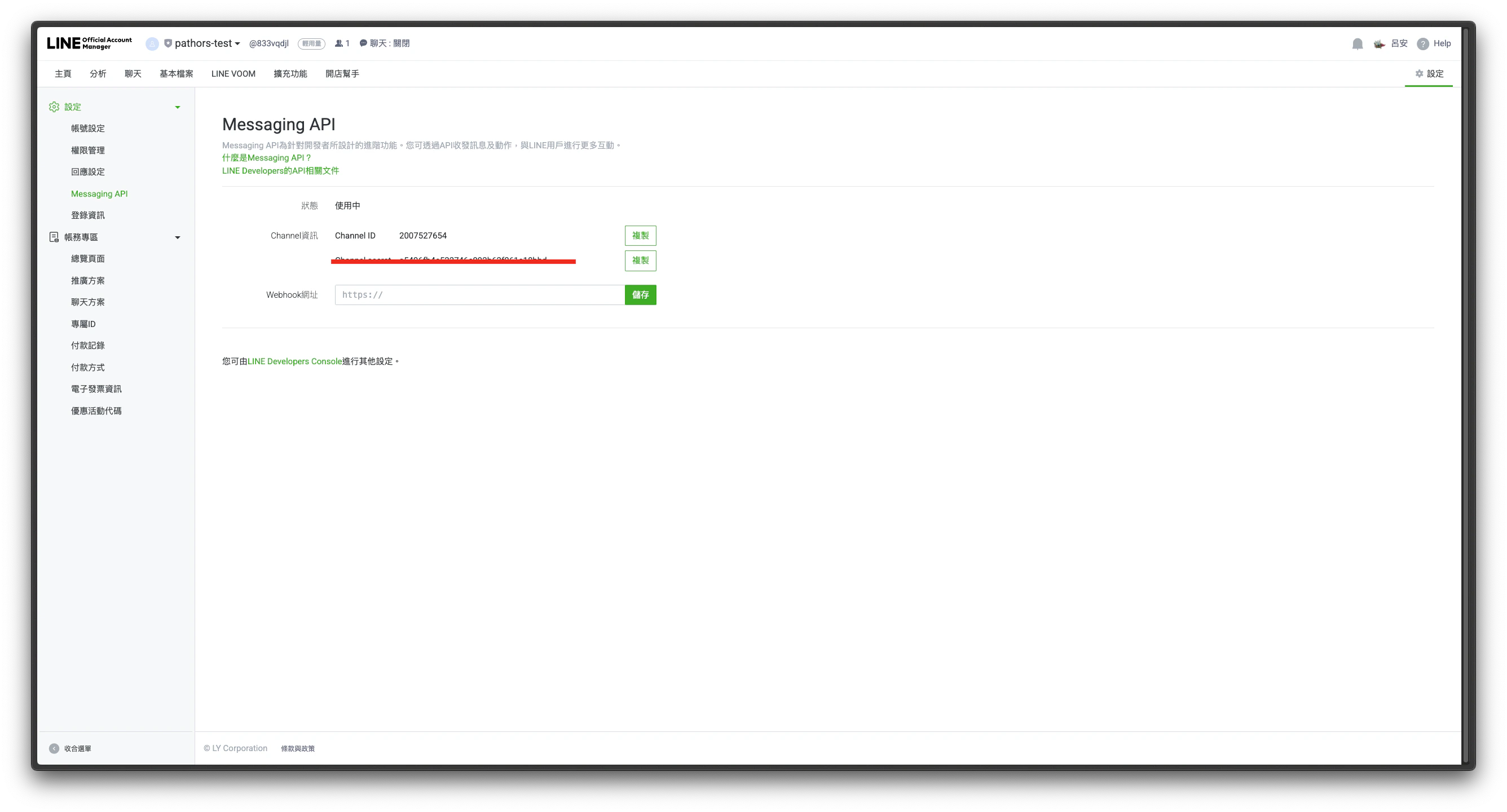
 5. 可在頁面上找到 Channel Secret,並可設定 webhook URL
 6. 點擊「Channel access token」按鈕,依指引取得 long live channel access token
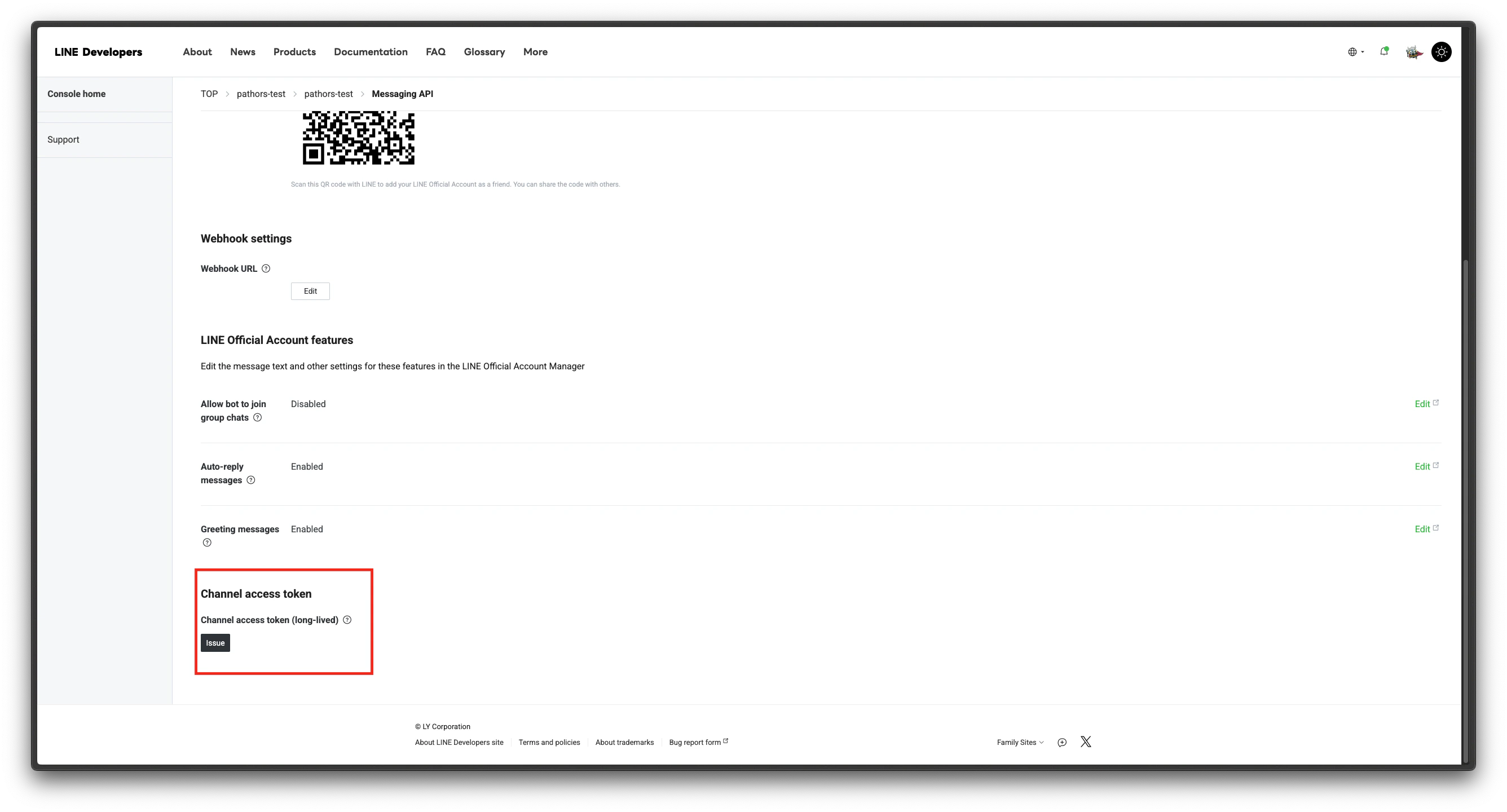 * 參考官方文檔:[issue long live channel access token](https://developers.line.biz/en/docs/basics/channel-access-token/#long-lived-channel-access-token)
## 常見問題
* Channel access token 與 channel secret 都不可或缺,需分別於 Messaging API 與 LINE login 頁面取得
* webhook URL 可在 Messaging API 頁面設定
## 相關資源
* [LINE Developers 官方文檔](https://developers.line.biz/zh-hans/docs/)
* 參考官方文檔:[issue long live channel access token](https://developers.line.biz/en/docs/basics/channel-access-token/#long-lived-channel-access-token)
## 常見問題
* Channel access token 與 channel secret 都不可或缺,需分別於 Messaging API 與 LINE login 頁面取得
* webhook URL 可在 Messaging API 頁面設定
## 相關資源
* [LINE Developers 官方文檔](https://developers.line.biz/zh-hans/docs/)