> ## Documentation Index
> Fetch the complete documentation index at: https://docs.pathors.com/llms.txt
> Use this file to discover all available pages before exploring further.
# Connect to Telegram Bot
> Learn how to quickly integrate Telegram Bot in Pathors, including creating bot with BotFather, obtaining Token, and setting up Webhook
## Overview
This tutorial will guide you through integrating a Telegram Bot in Pathors, including creating a bot using BotFather, obtaining the Bot Token, configuring the integration in Pathors, and setting up the Webhook.
## Step 1: Create Telegram Bot with BotFather
1. Search for and open [@BotFather](https://t.me/botfather) in Telegram
2. Send the `/newbot` command to start creating a new bot
3. Follow BotFather's instructions:
* Enter your bot name (can be any name)
* Enter your bot username (must end with `bot`, e.g., `myawesomebot` or `MyAwesome_bot`)
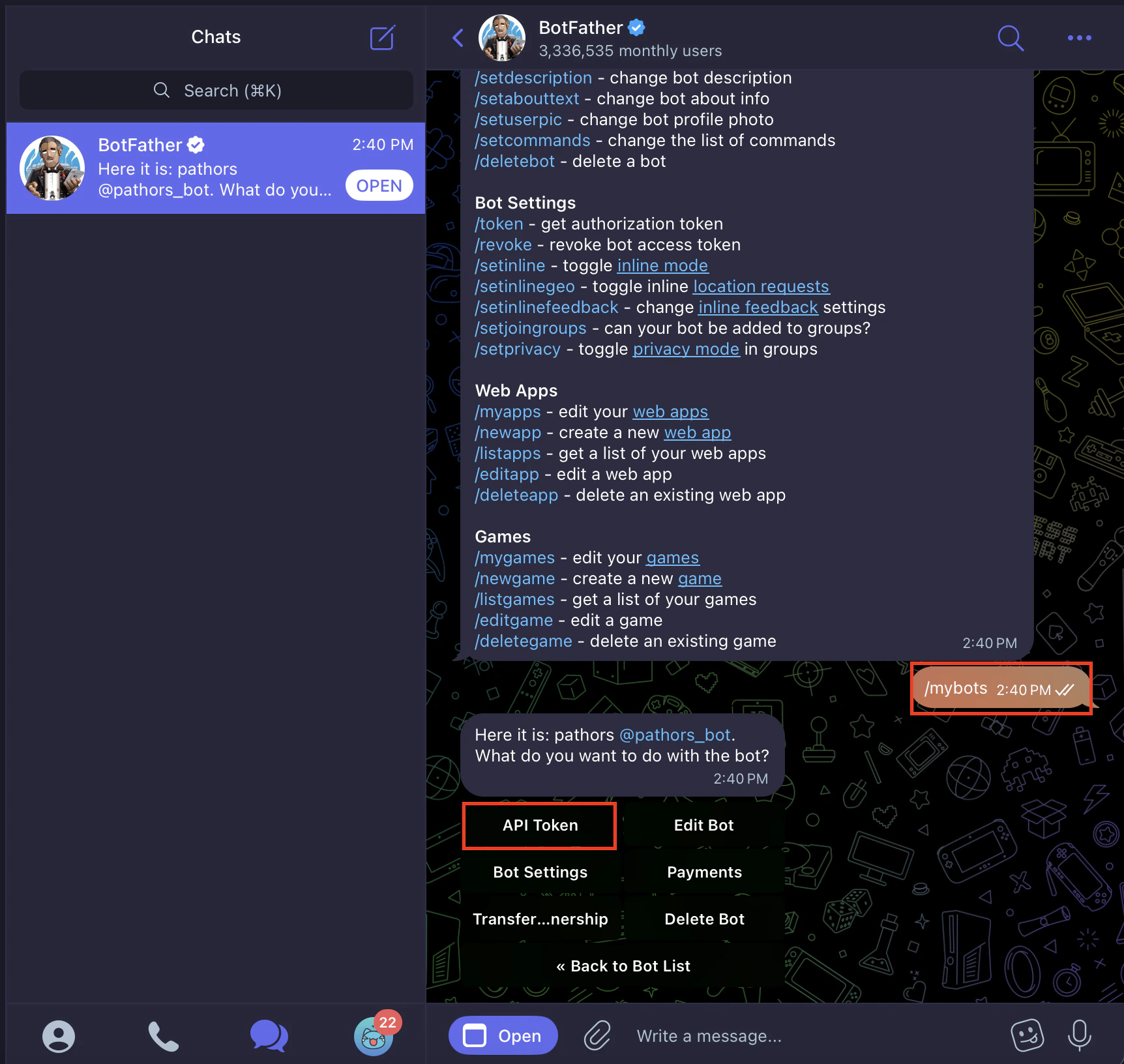
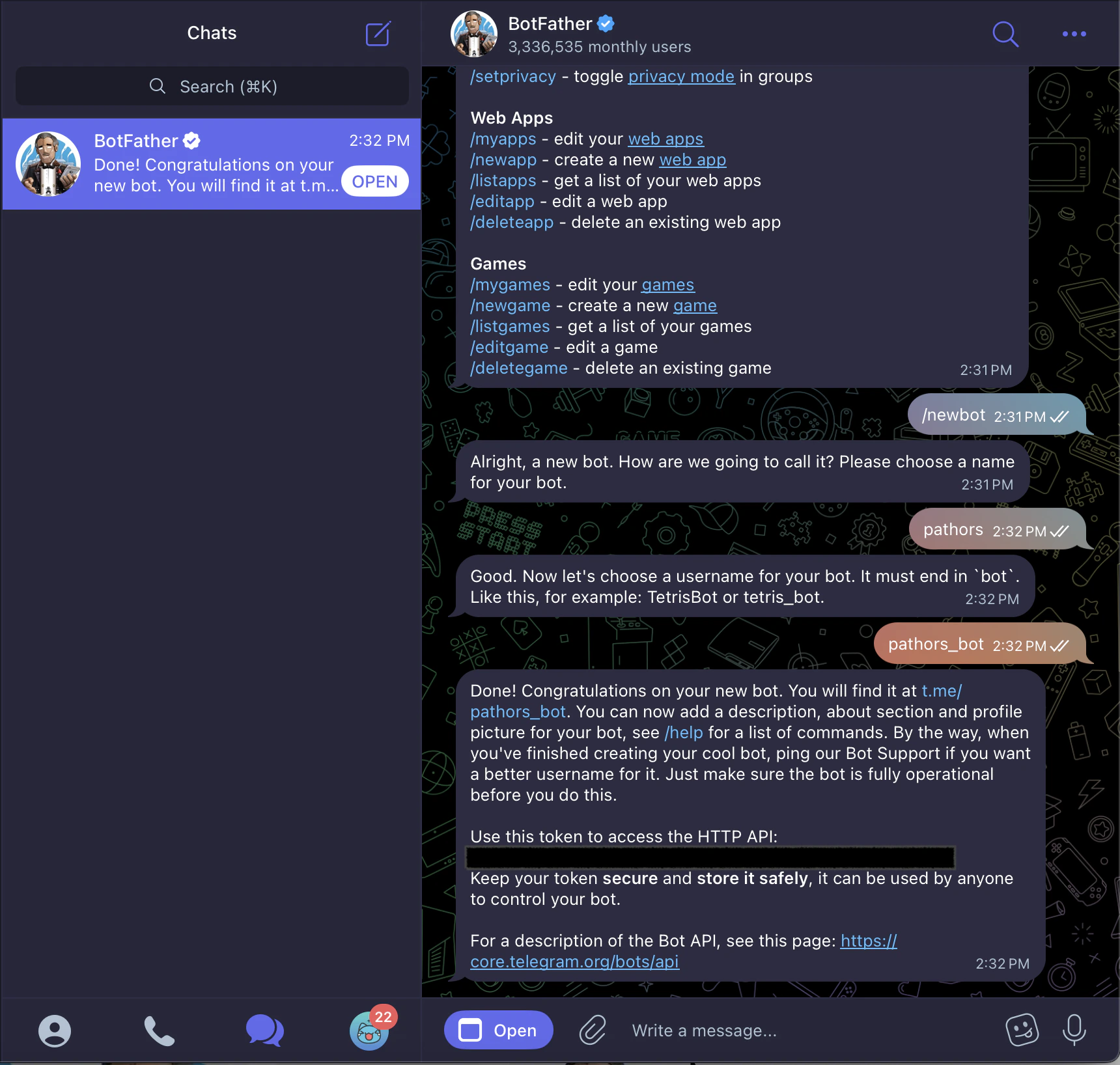 4. After successful creation, BotFather will provide your **Bot Token**. Please save this Token securely
 ## Step 2: Enable Telegram Integration in Pathors
1. Log into your Pathors project
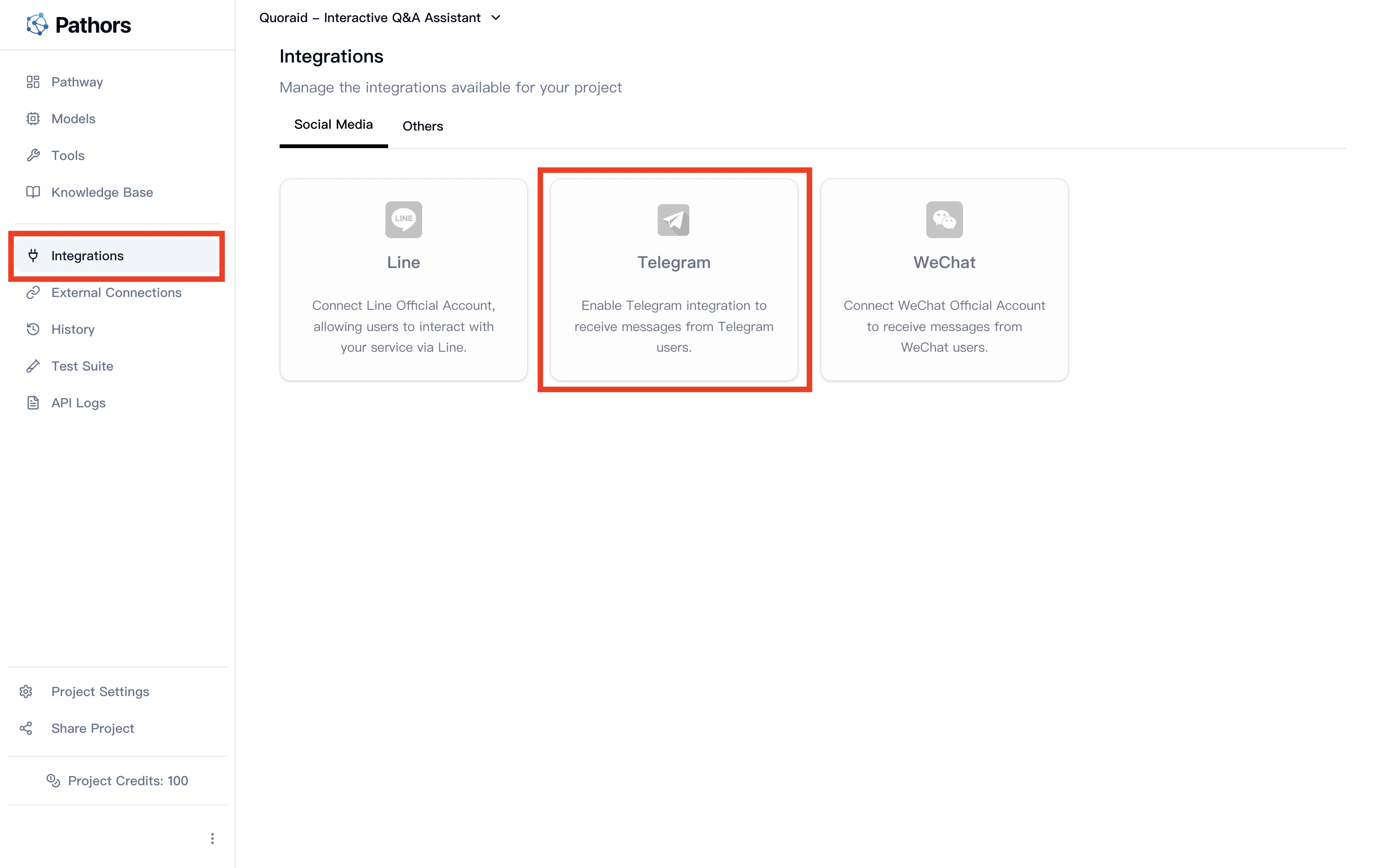
2. Navigate to the "Integrations" page
3. Find the Telegram integration option and click to enter
## Step 2: Enable Telegram Integration in Pathors
1. Log into your Pathors project
2. Navigate to the "Integrations" page
3. Find the Telegram integration option and click to enter
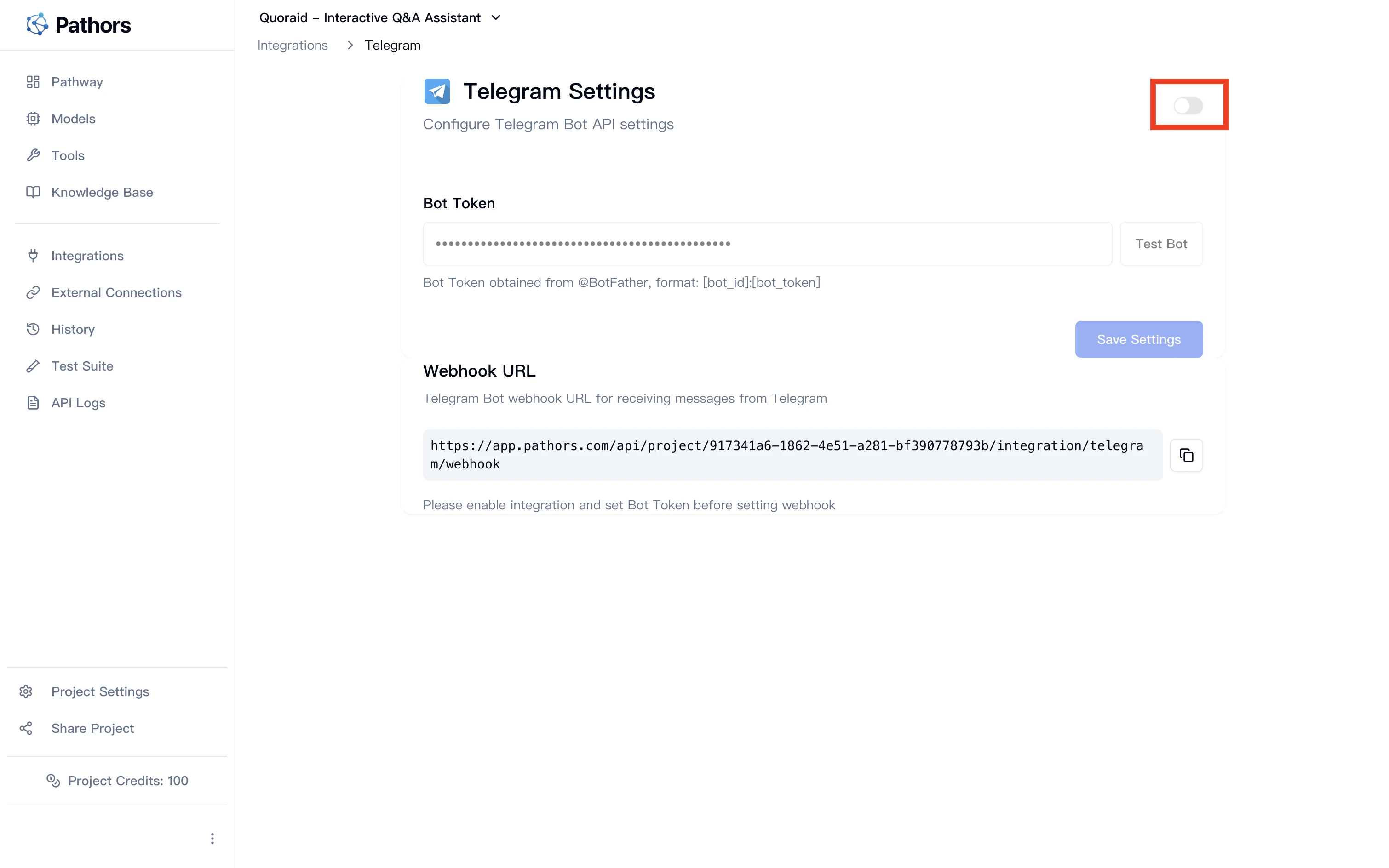
 4. Click the toggle switch in the top right corner to enable Telegram integration
 ## Step 3: Configure Bot Token
1. Enter the Token you obtained from BotFather in the "Bot Token" field
2. Click the "Test Bot" button to verify if the Token is valid
## Step 3: Configure Bot Token
1. Enter the Token you obtained from BotFather in the "Bot Token" field
2. Click the "Test Bot" button to verify if the Token is valid
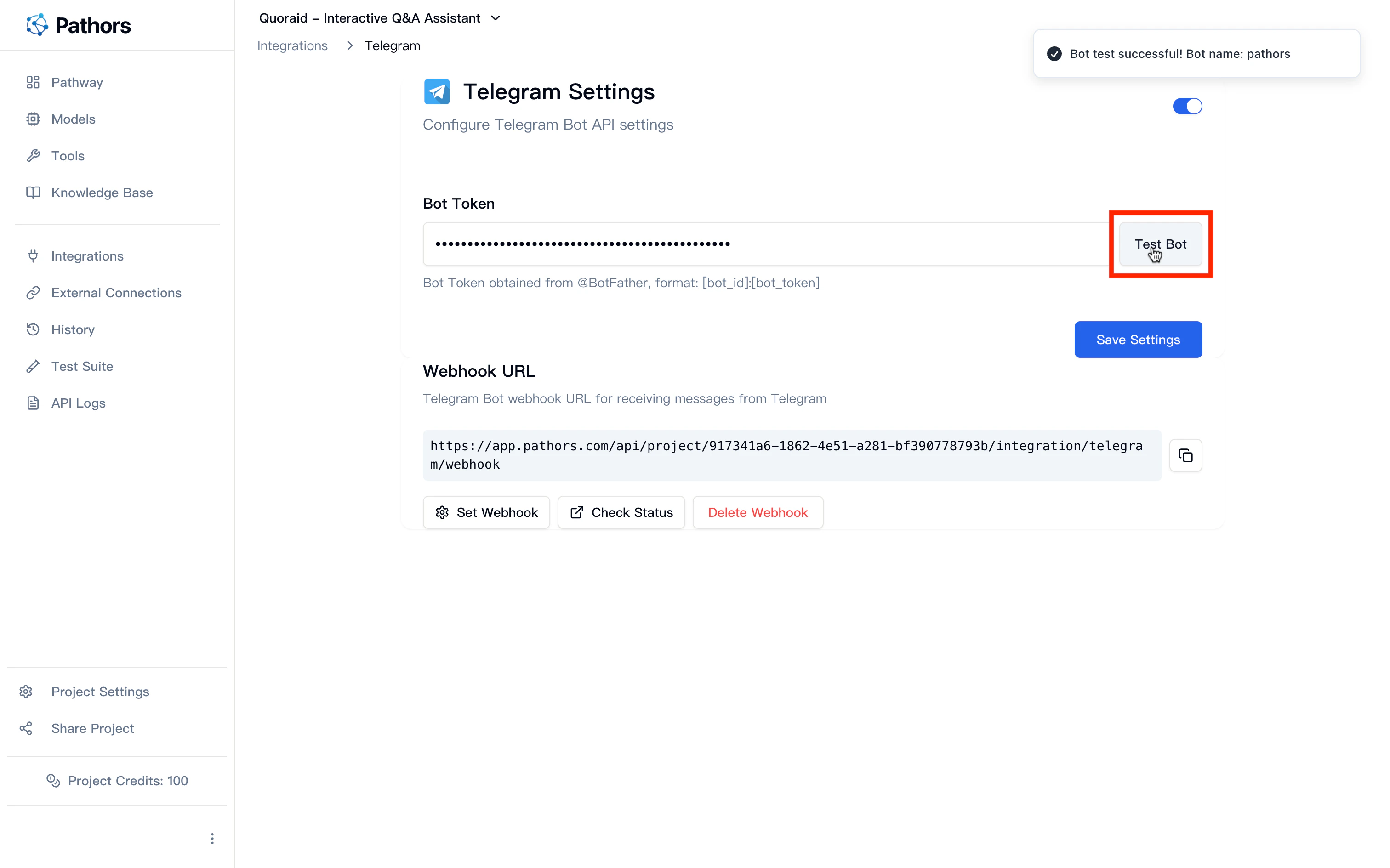 3. If the test is successful, it will display the bot information
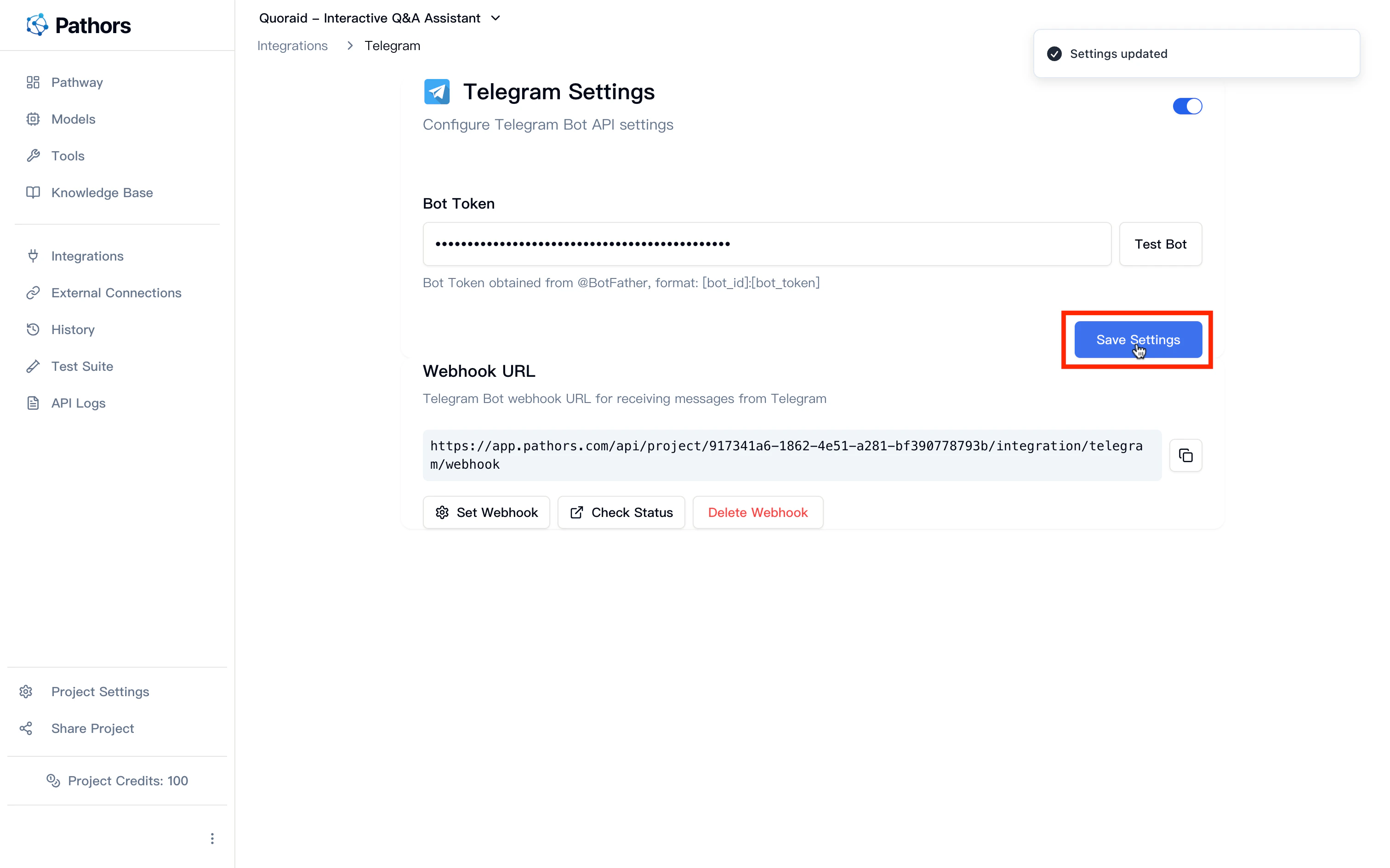
4. Click the "Save" button to store the configuration
3. If the test is successful, it will display the bot information
4. Click the "Save" button to store the configuration
 ## Step 4: Set Up Webhook
1. In the "Webhook Settings" section at the bottom of the page, you will see the automatically generated Webhook URL
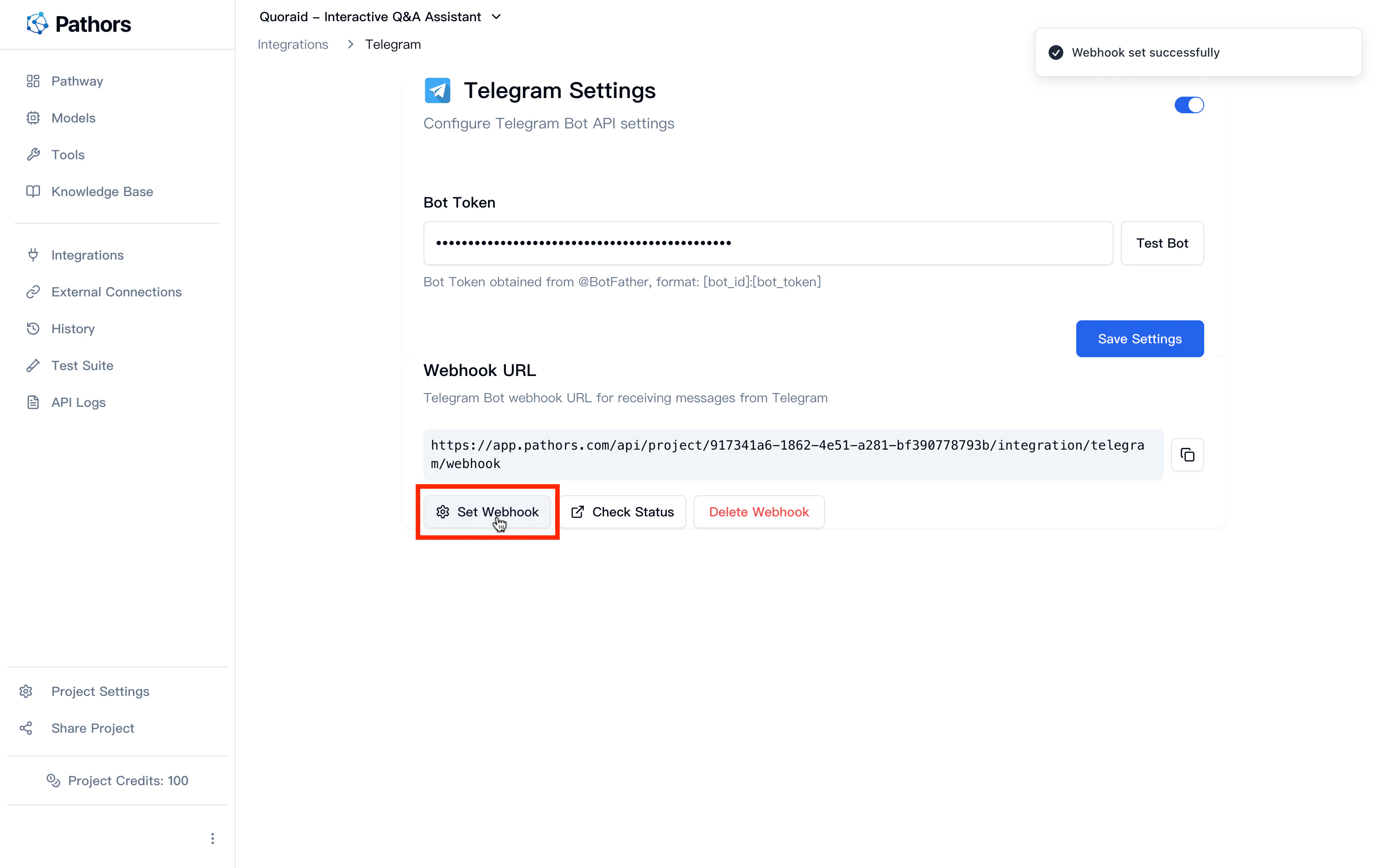
2. Click the "Set Webhook" button, and the system will automatically register the Webhook with Telegram
## Step 4: Set Up Webhook
1. In the "Webhook Settings" section at the bottom of the page, you will see the automatically generated Webhook URL
2. Click the "Set Webhook" button, and the system will automatically register the Webhook with Telegram
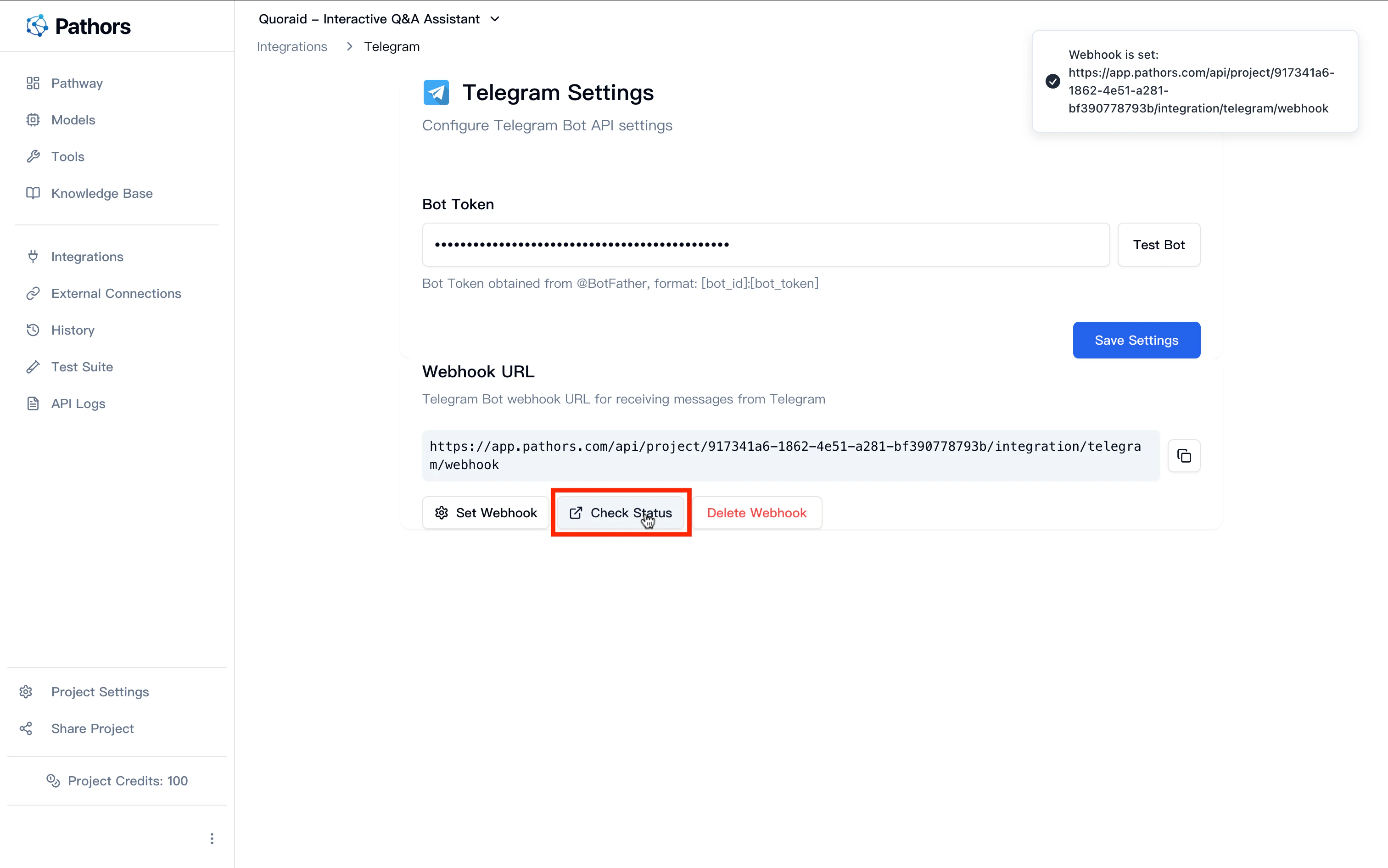
 3. You can also click "Check Status" to confirm if the Webhook was set up successfully
 ## Step 5: Test Your Bot
1. Search for your bot username in Telegram
2. Click "Start" or send the `/start` command
3. Start chatting with your Pathors AI assistant!
## Important Notes
* **Bot Token Format**: Token should look like `123456789:ABCdefGhIJKlmNoPQRsTUVwxyz`
* **Security**: Keep your Bot Token secure and do not share it with others
* **Enable Order**: You must first enable the integration toggle before entering and saving the Bot Token
* **Webhook Requirements**: You can only set up the Webhook after entering a valid Bot Token
## Common Issues
### Q: Why can't I save the Bot Token?
A: Please ensure you have enabled the Telegram integration toggle (the switch button in the top right corner).
### Q: What if Bot Token validation fails?
A: Please check:
* If the Token format is correct
* If you have completely copied the Token provided by BotFather
* If the bot was created correctly
### Q: What if Webhook setup fails?
A: Please ensure:
* Bot Token has been correctly configured and tested successfully
* Network connection is stable
* Contact technical support for further assistance
### Q: How to delete or reset Webhook?
A: In the Webhook Settings section, click the "Delete Webhook" button to remove the existing Webhook settings.
## Related Resources
* [Telegram Bot API Official Documentation](https://core.telegram.org/bots/api)
* [BotFather Official Guide](https://core.telegram.org/bots/tutorial)
* [Pathors Integration Documentation](../integrations)
## Step 5: Test Your Bot
1. Search for your bot username in Telegram
2. Click "Start" or send the `/start` command
3. Start chatting with your Pathors AI assistant!
## Important Notes
* **Bot Token Format**: Token should look like `123456789:ABCdefGhIJKlmNoPQRsTUVwxyz`
* **Security**: Keep your Bot Token secure and do not share it with others
* **Enable Order**: You must first enable the integration toggle before entering and saving the Bot Token
* **Webhook Requirements**: You can only set up the Webhook after entering a valid Bot Token
## Common Issues
### Q: Why can't I save the Bot Token?
A: Please ensure you have enabled the Telegram integration toggle (the switch button in the top right corner).
### Q: What if Bot Token validation fails?
A: Please check:
* If the Token format is correct
* If you have completely copied the Token provided by BotFather
* If the bot was created correctly
### Q: What if Webhook setup fails?
A: Please ensure:
* Bot Token has been correctly configured and tested successfully
* Network connection is stable
* Contact technical support for further assistance
### Q: How to delete or reset Webhook?
A: In the Webhook Settings section, click the "Delete Webhook" button to remove the existing Webhook settings.
## Related Resources
* [Telegram Bot API Official Documentation](https://core.telegram.org/bots/api)
* [BotFather Official Guide](https://core.telegram.org/bots/tutorial)
* [Pathors Integration Documentation](../integrations)