> ## Documentation Index
> Fetch the complete documentation index at: https://docs.pathors.com/llms.txt
> Use this file to discover all available pages before exploring further.
# Connect to LINE Bot
> Learn how to quickly integrate LINE Bot with Pathors, including Messaging API, Channel Secret, Access Token, and webhook setup.
## Overview
This guide will walk you through integrating LINE Bot with Pathors, covering provider creation, Messaging API, LINE login, access token, channel secret, and webhook setup.
## Step 1: Create a Provider
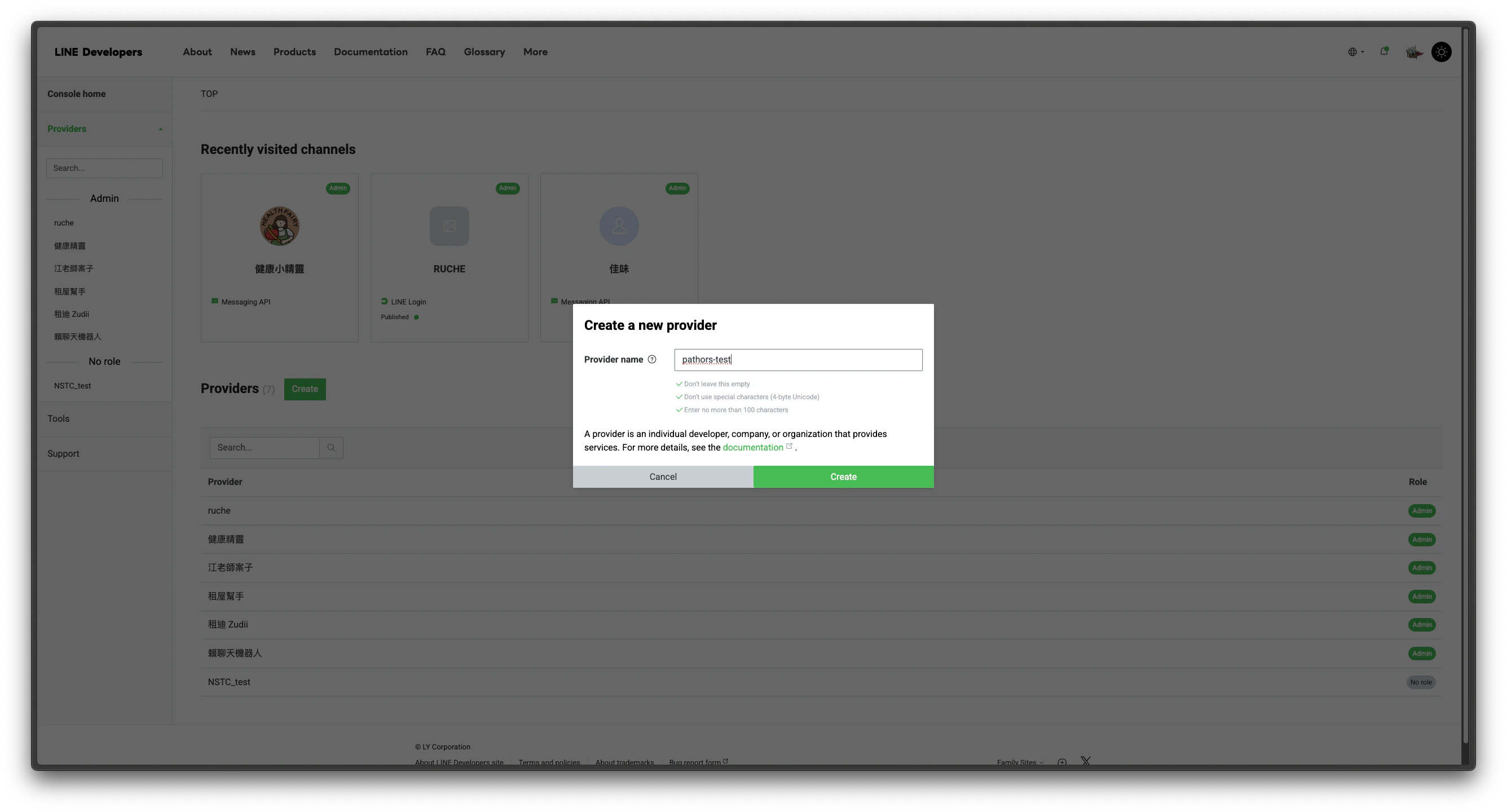
1. Go to the [LINE Developers Console](https://developers.line.biz/console/)
2. Click "Create a new provider" and enter a provider name (Chinese characters only)
 ## Step 2: Create Messaging API
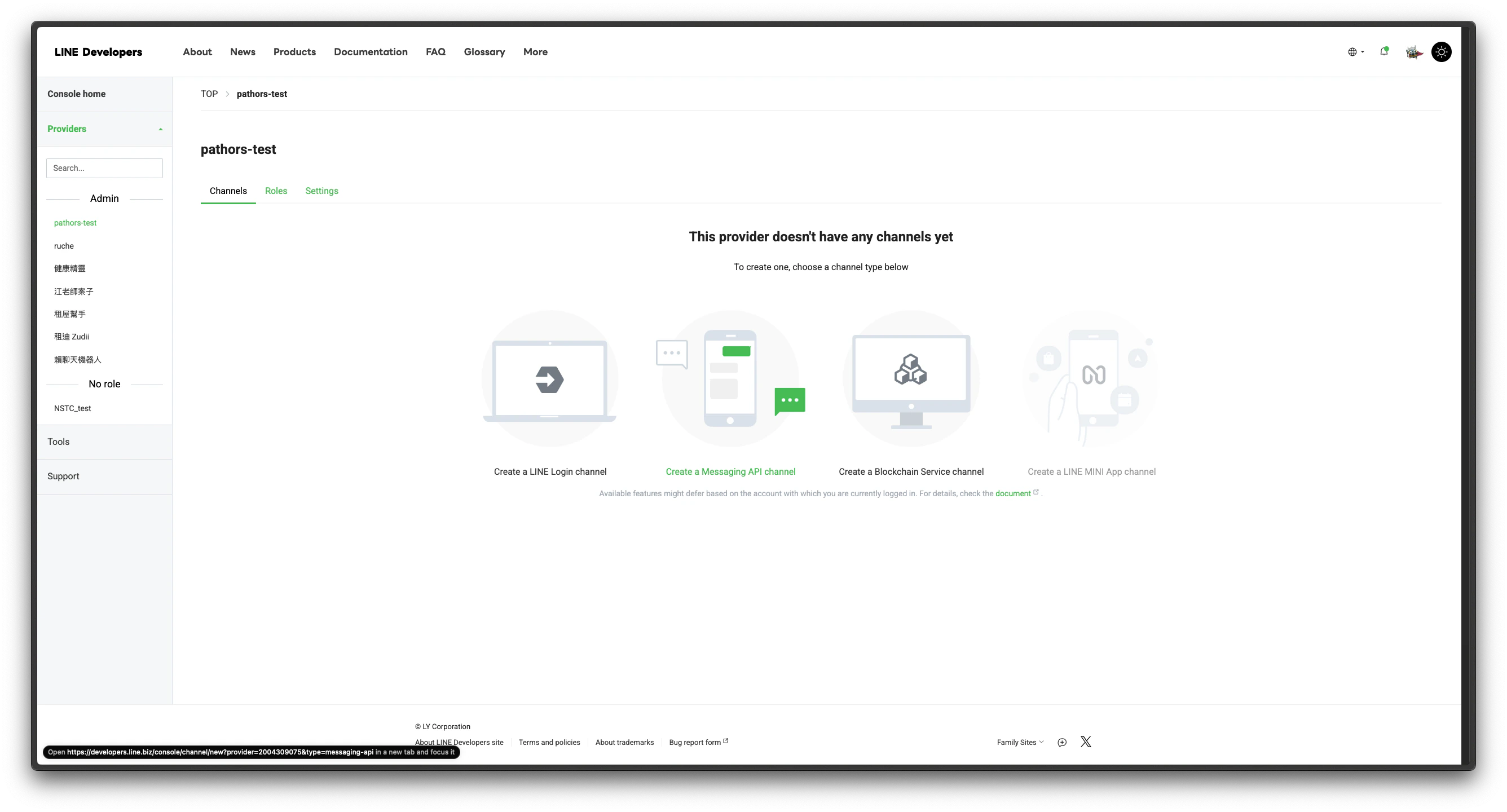
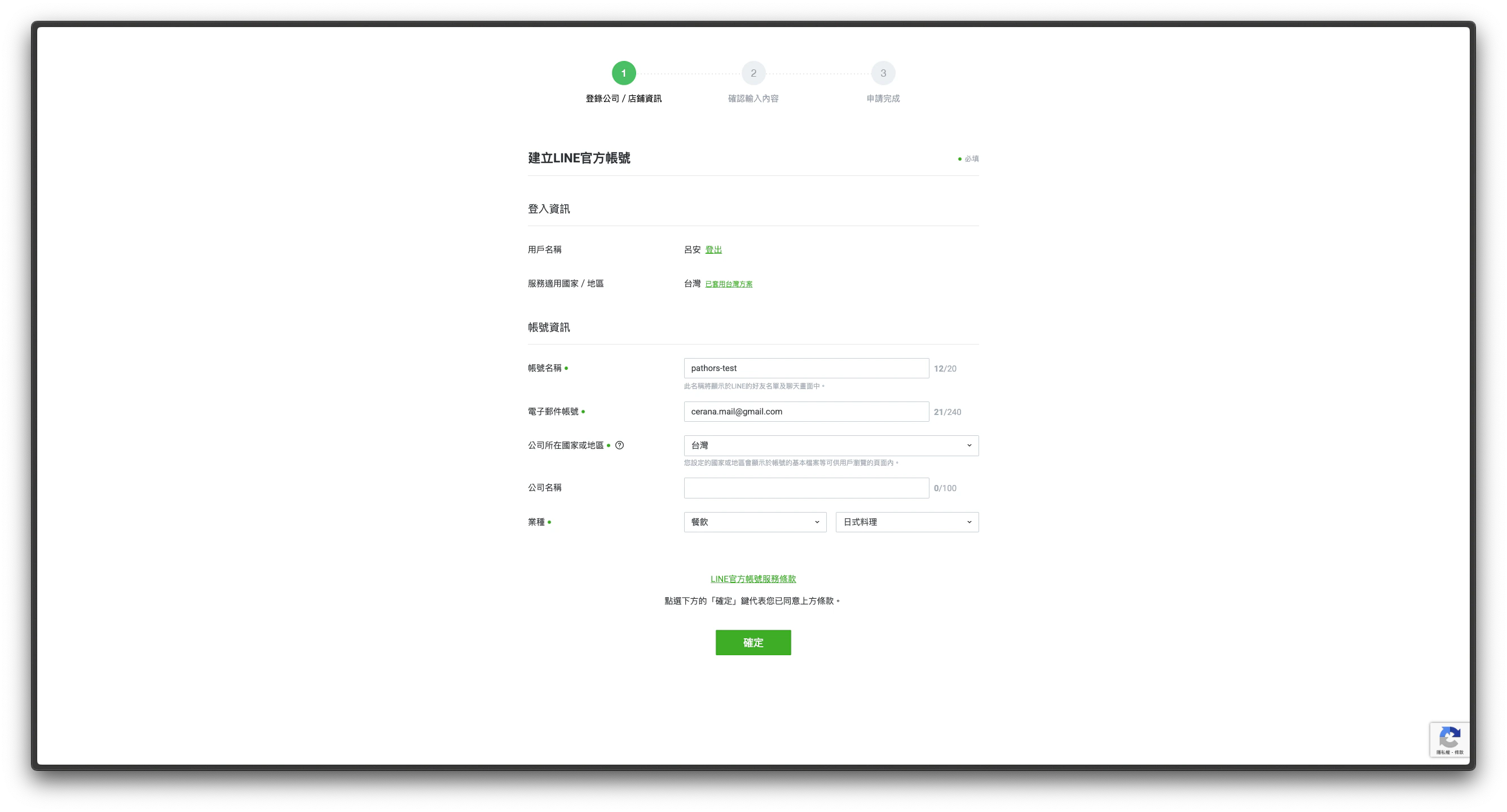
1. Due to recent updates, use the [special form](https://entry.line.biz/form/entry/unverified) to create a Messaging API channel
2. Fill in the required information (account name, email, company info, etc.) and submit
## Step 2: Create Messaging API
1. Due to recent updates, use the [special form](https://entry.line.biz/form/entry/unverified) to create a Messaging API channel
2. Fill in the required information (account name, email, company info, etc.) and submit
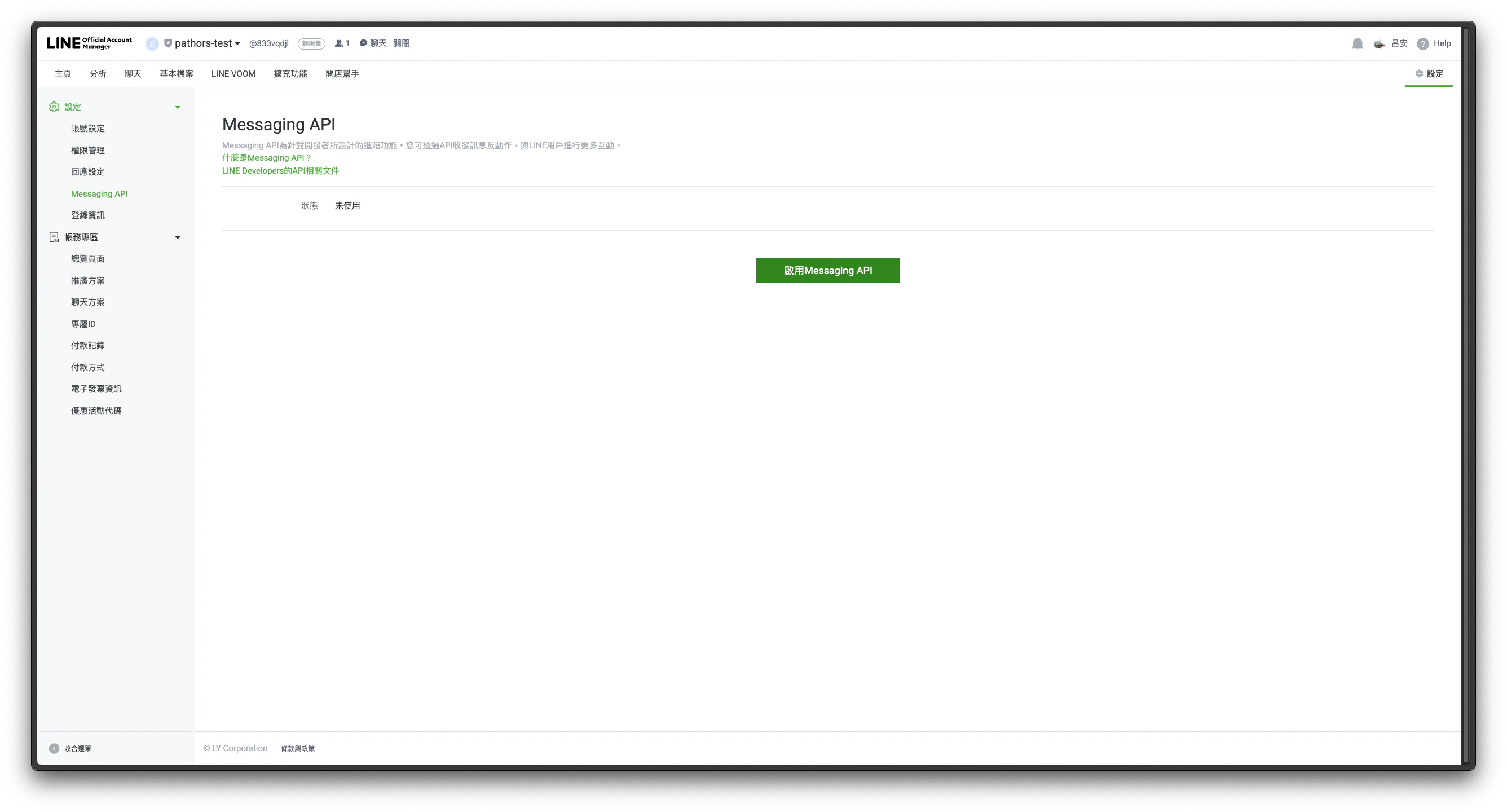
 3. After creation, click "Enable Messaging API" on the page
 ## Step 3: Create LINE Login
1. Under your provider, select "Create a LINE Login channel"
2. Follow the instructions to complete the setup
## Step 4: Get Channel Secret & Access Token
1. Go to the [LINE Biz Admin Console](https://manager.line.biz/account/)
2. Select the Messaging API you just created
## Step 3: Create LINE Login
1. Under your provider, select "Create a LINE Login channel"
2. Follow the instructions to complete the setup
## Step 4: Get Channel Secret & Access Token
1. Go to the [LINE Biz Admin Console](https://manager.line.biz/account/)
2. Select the Messaging API you just created
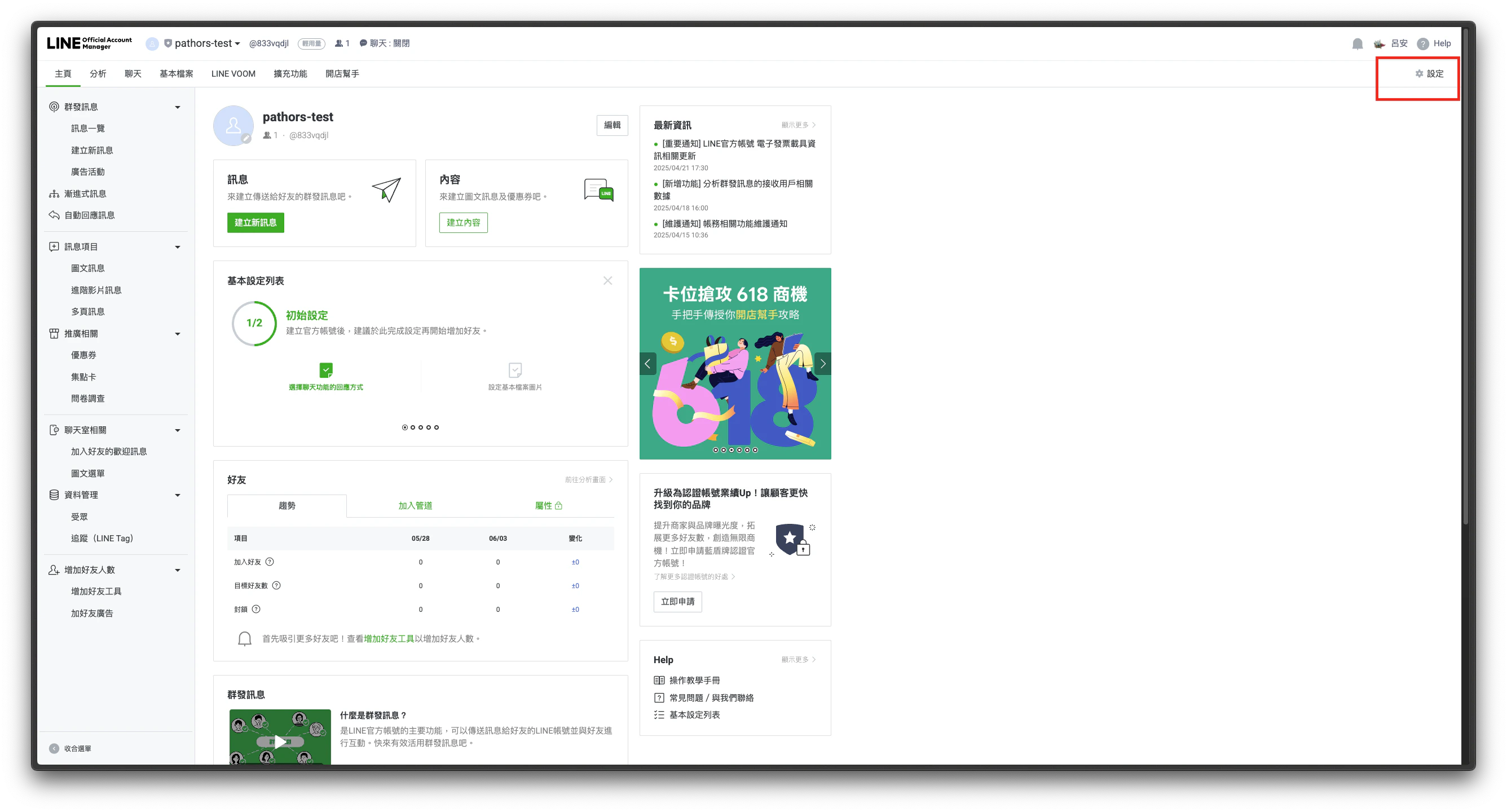 3. Click "Settings" in the top right
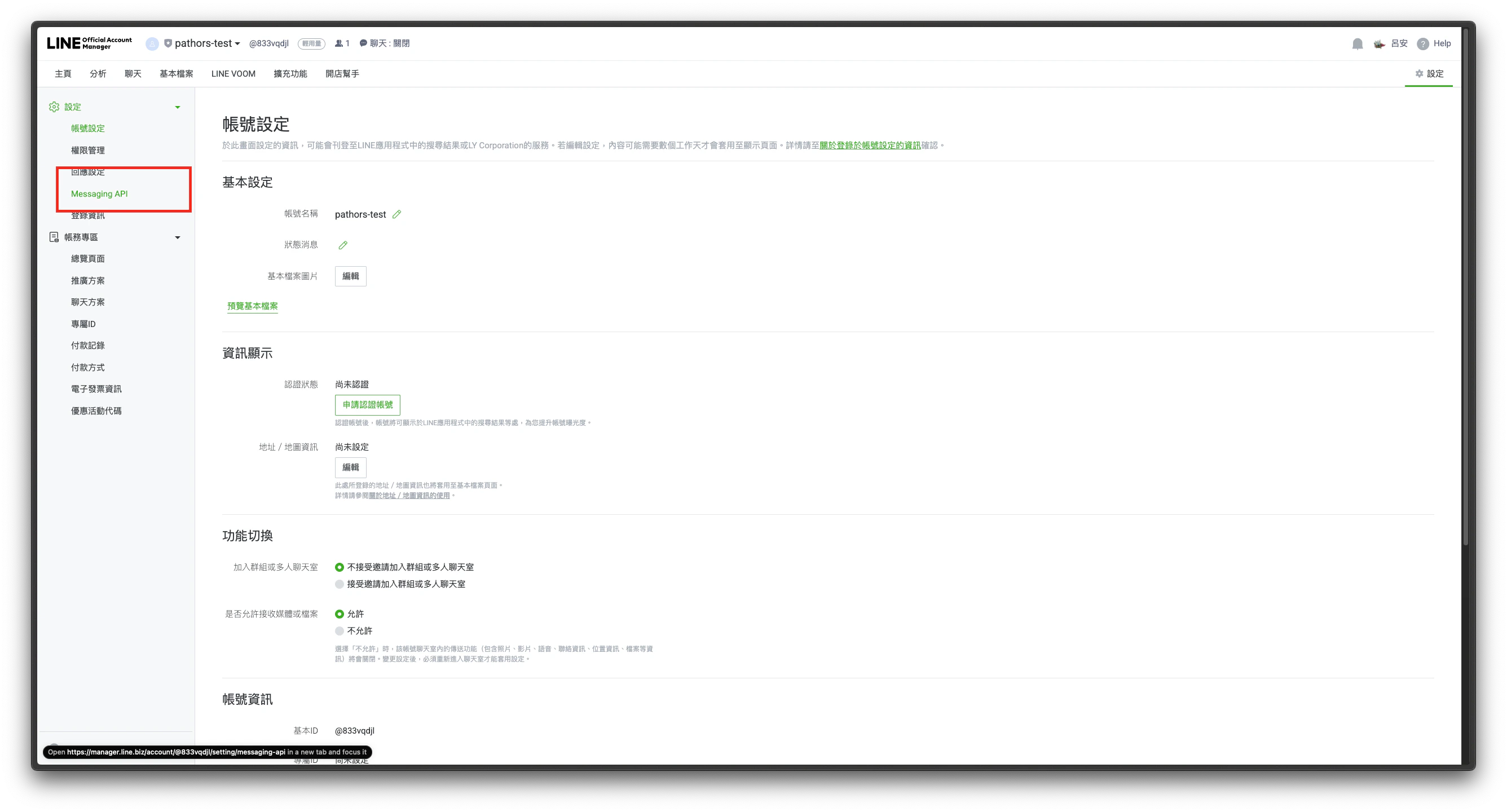
4. In the left menu, select "Messaging API"
3. Click "Settings" in the top right
4. In the left menu, select "Messaging API"
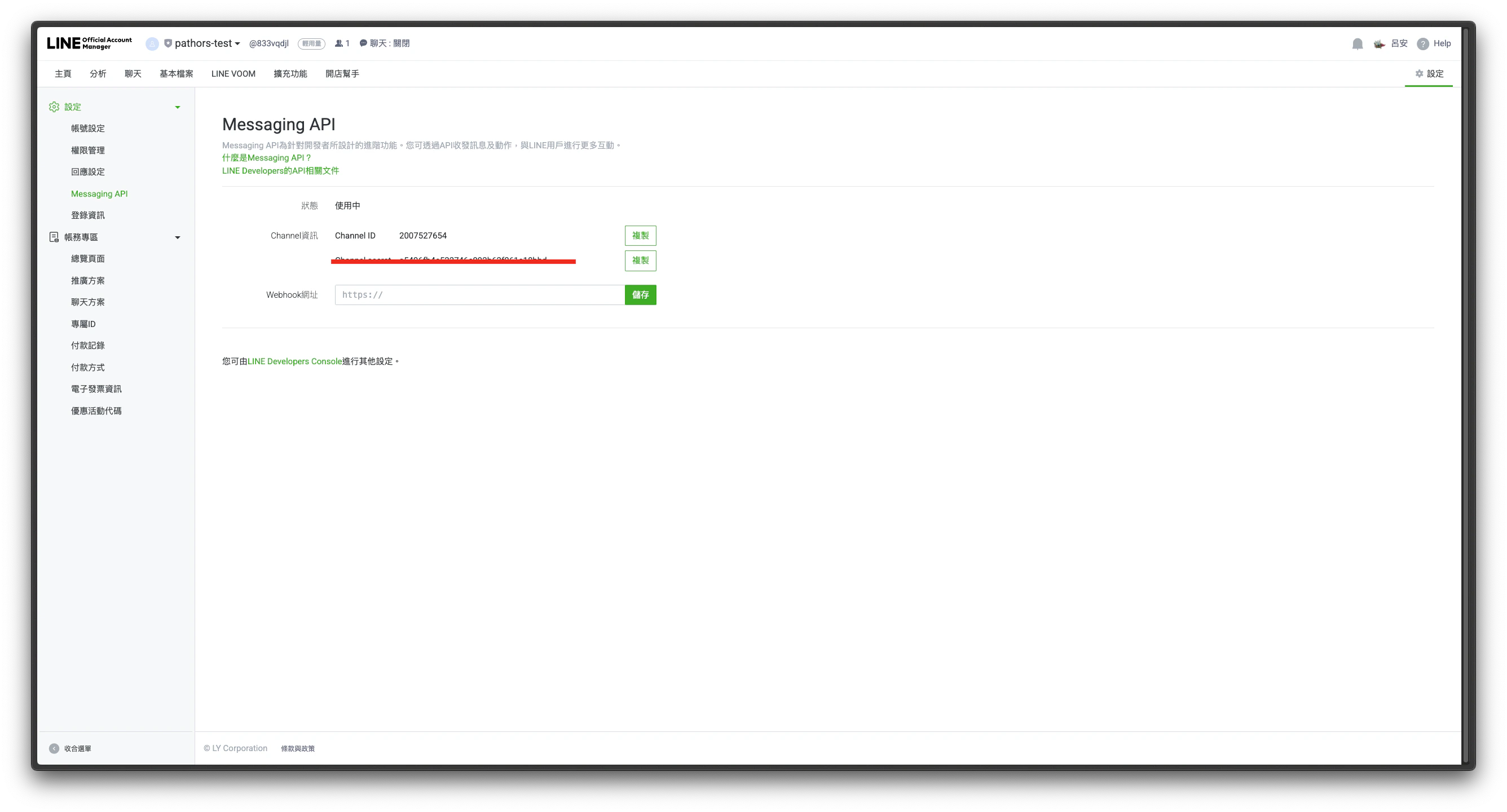
 5. You will find the Channel Secret and can set the webhook URL here
 6. Click the "Channel access token" button and follow the instructions to issue a long-lived channel access token
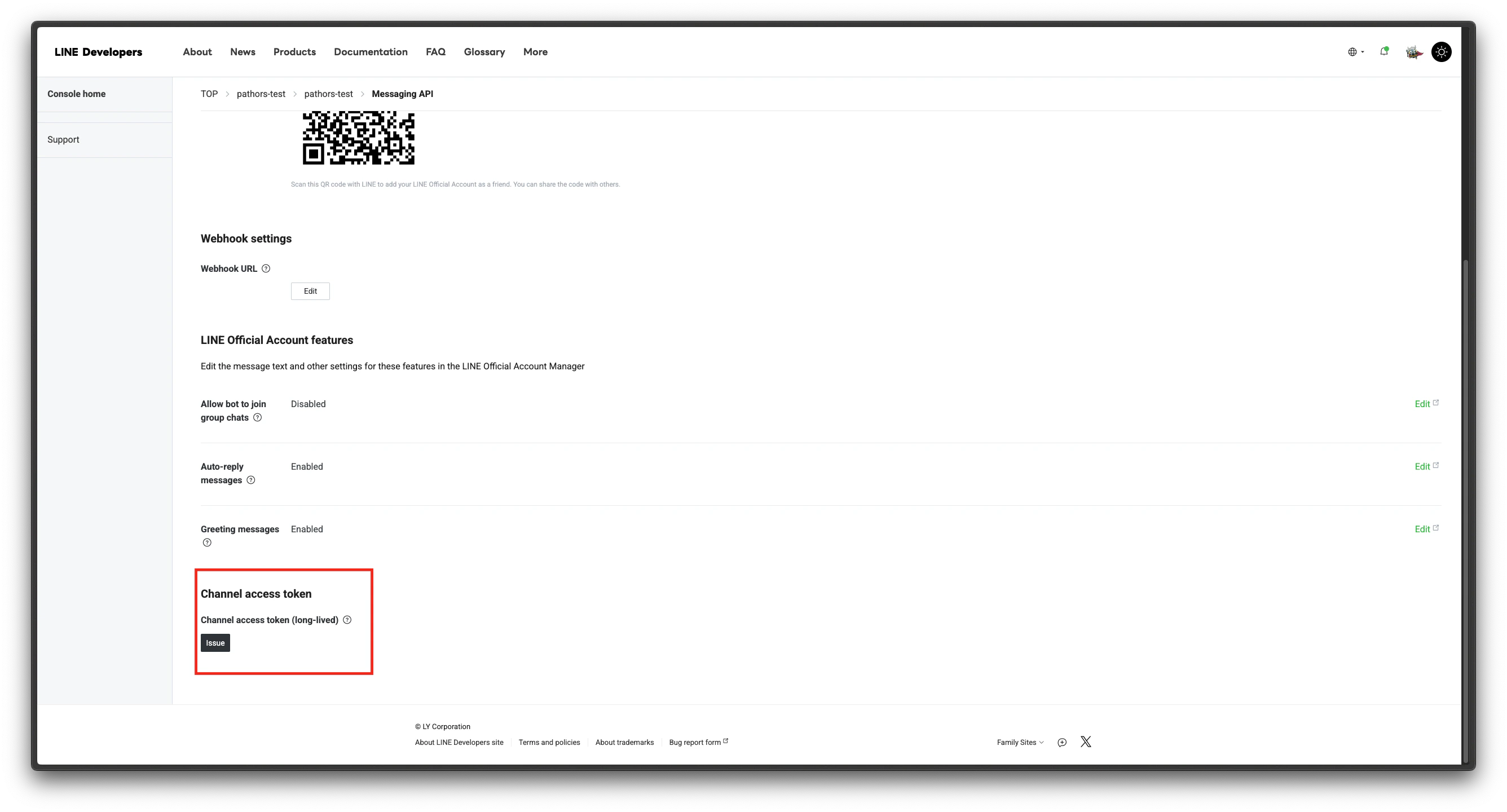 * See the official guide: [issue long live channel access token](https://developers.line.biz/en/docs/basics/channel-access-token/#long-lived-channel-access-token)
## FAQ
* Both channel access token and channel secret are required; get them from the Messaging API and LINE login pages respectively
* The webhook URL can be set on the Messaging API page
## Related Resources
* [LINE Developers Official Documentation](https://developers.line.biz/en/docs/)
* See the official guide: [issue long live channel access token](https://developers.line.biz/en/docs/basics/channel-access-token/#long-lived-channel-access-token)
## FAQ
* Both channel access token and channel secret are required; get them from the Messaging API and LINE login pages respectively
* The webhook URL can be set on the Messaging API page
## Related Resources
* [LINE Developers Official Documentation](https://developers.line.biz/en/docs/)