> ## Documentation Index
> Fetch the complete documentation index at: https://docs.pathors.com/llms.txt
> Use this file to discover all available pages before exploring further.
# Connect to Chatwoot
> Learn how to integrate Chatwoot with Pathors, including obtaining your API Access Token, configuring credentials, and creating an Agent Bot.
## Overview
This guide walks you through integrating Chatwoot with Pathors. Once set up, Pathors AI will automatically respond to conversations in your Chatwoot inbox via an Agent Bot.
## Prerequisites
* A Chatwoot account (self-hosted or cloud)
* A Pathors project
## Step 1: Get Your Chatwoot Credentials
You will need three pieces of information from your Chatwoot instance:
### Base URL
This is the URL of your Chatwoot instance.
* **Chatwoot Cloud**: `https://app.chatwoot.com`
* **Self-hosted**: Your custom domain, e.g., `https://chatwoot.yourcompany.com`
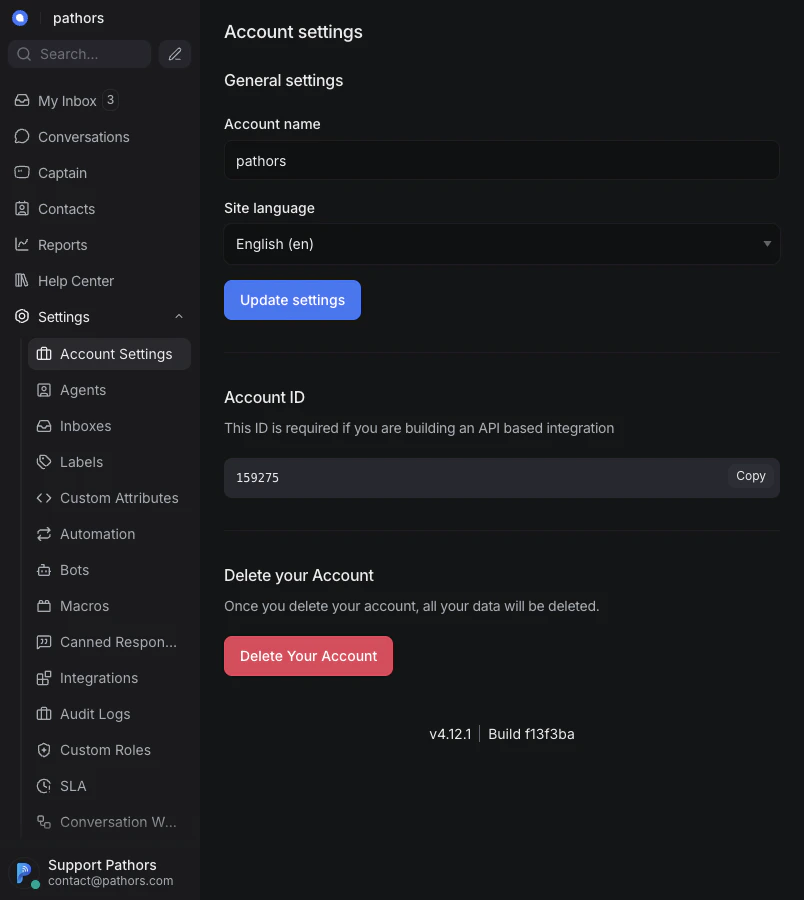
### Account ID
1. Log in to your Chatwoot dashboard
2. Go to **Settings** > **Account Settings**
3. Your Account ID is displayed on this page — click **Copy** to copy it
 You can also find the Account ID in your Chatwoot URL. For example, in
`https://app.chatwoot.com/app/accounts/1/dashboard`, the Account ID is `1`.
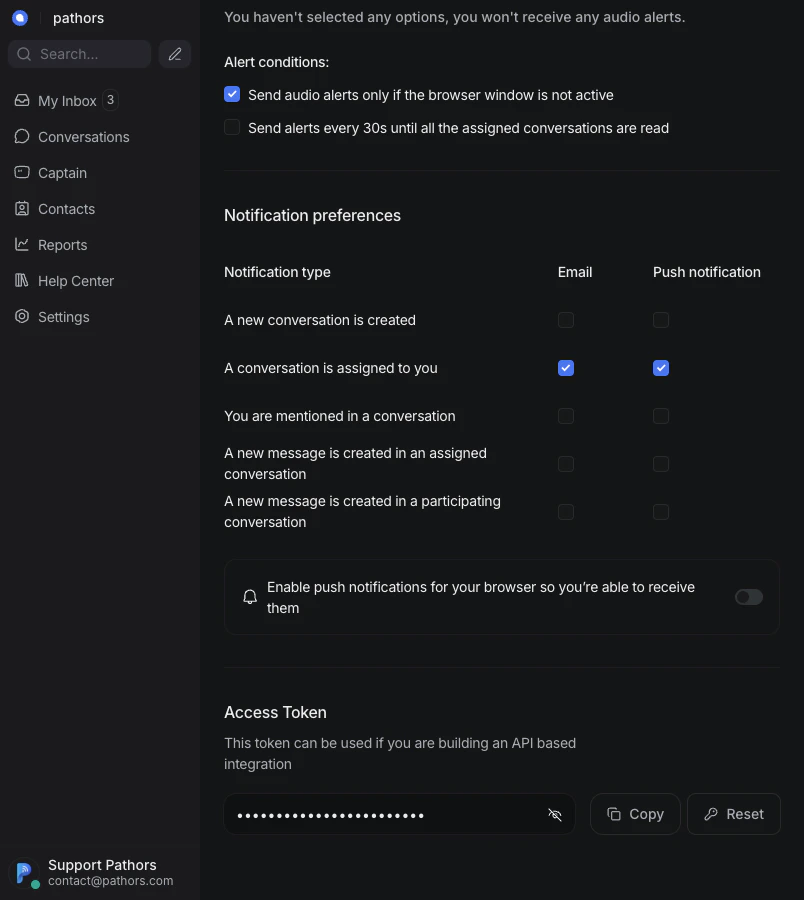
### API Access Token
The API Access Token is required for Pathors to communicate with the Chatwoot API on your behalf.
1. Log in to your Chatwoot dashboard
2. Click your **avatar** (bottom-left corner) to open your profile
3. Scroll down to the **Access Token** section
4. Click the **eye icon** to reveal the token, then click **Copy**
You can also find the Account ID in your Chatwoot URL. For example, in
`https://app.chatwoot.com/app/accounts/1/dashboard`, the Account ID is `1`.
### API Access Token
The API Access Token is required for Pathors to communicate with the Chatwoot API on your behalf.
1. Log in to your Chatwoot dashboard
2. Click your **avatar** (bottom-left corner) to open your profile
3. Scroll down to the **Access Token** section
4. Click the **eye icon** to reveal the token, then click **Copy**
 This token grants full API access to your Chatwoot account. Keep it secure and
do not share it publicly.
## Step 2: Configure Chatwoot in Pathors
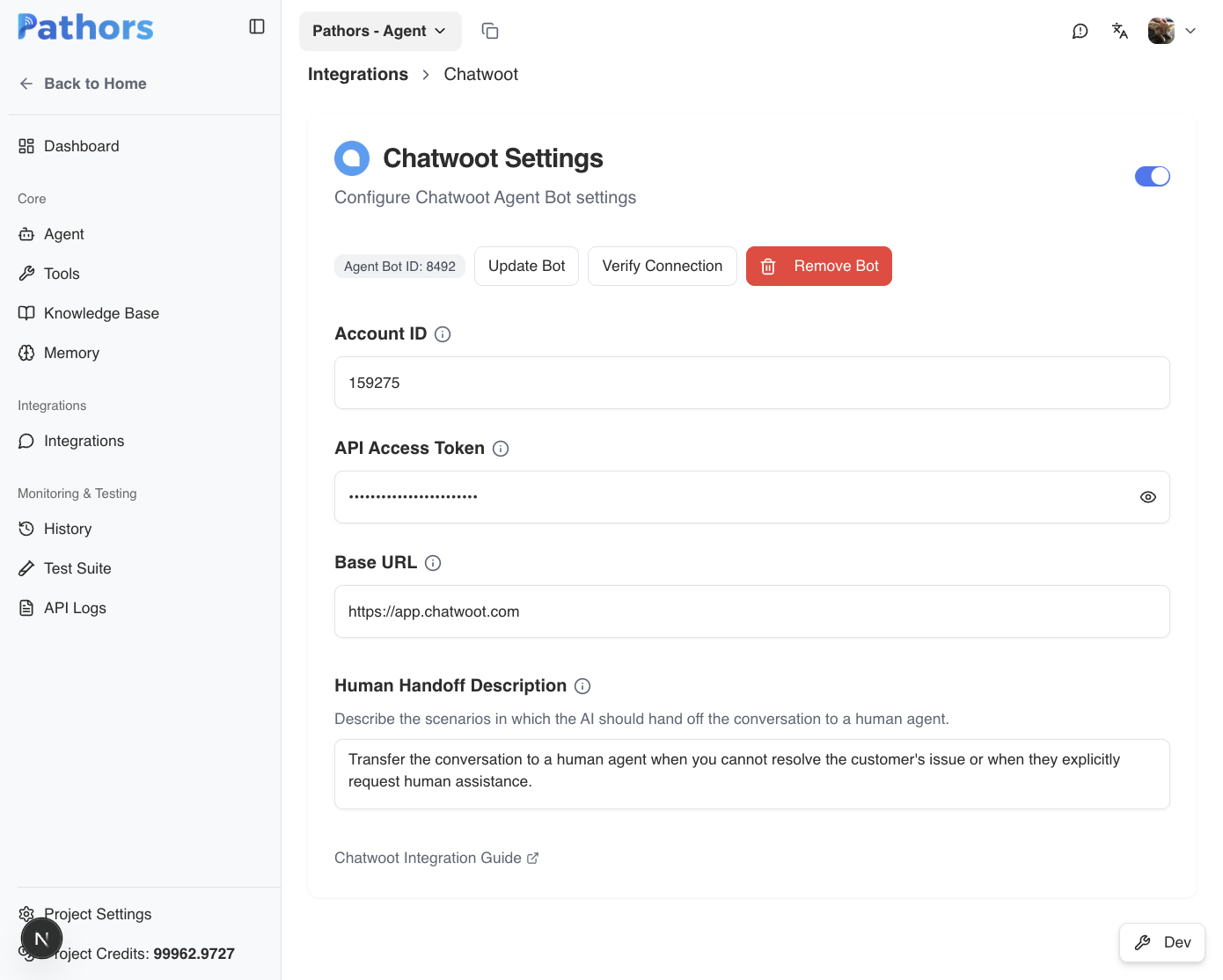
1. Log in to your Pathors project
2. Go to **Integrations** and click **Chatwoot**
3. Toggle the integration **on** using the switch in the top-right corner
This token grants full API access to your Chatwoot account. Keep it secure and
do not share it publicly.
## Step 2: Configure Chatwoot in Pathors
1. Log in to your Pathors project
2. Go to **Integrations** and click **Chatwoot**
3. Toggle the integration **on** using the switch in the top-right corner
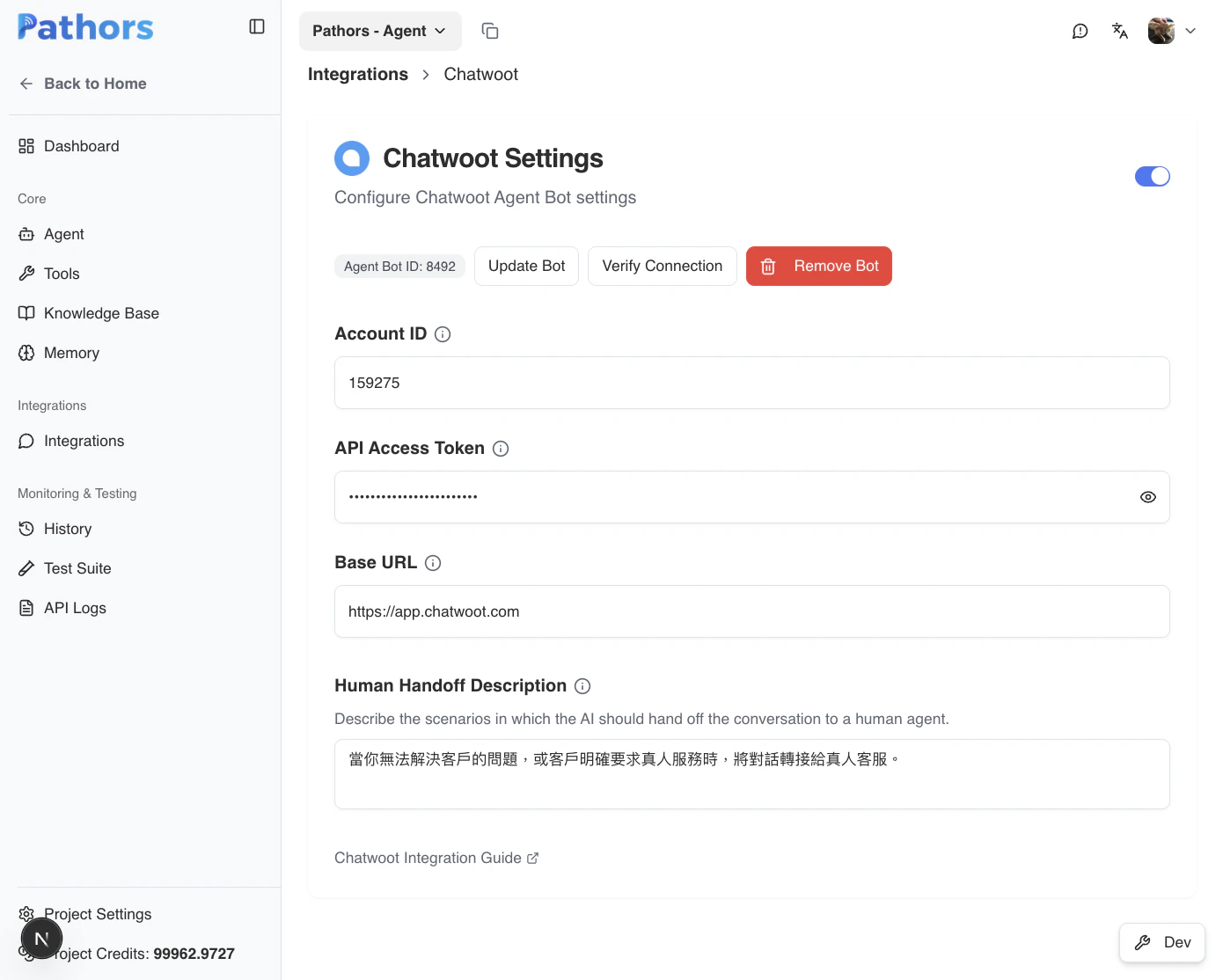 4. Fill in the credentials (your changes auto-save after a short delay):
* **Account ID**: Your Chatwoot Account ID from Step 1
* **API Access Token**: The token from Step 1
* **Base URL**: Your Chatwoot instance URL (defaults to `https://app.chatwoot.com`)
4. Fill in the credentials (your changes auto-save after a short delay):
* **Account ID**: Your Chatwoot Account ID from Step 1
* **API Access Token**: The token from Step 1
* **Base URL**: Your Chatwoot instance URL (defaults to `https://app.chatwoot.com`)
 ## Step 3: Customize the Handoff Behavior (Optional)
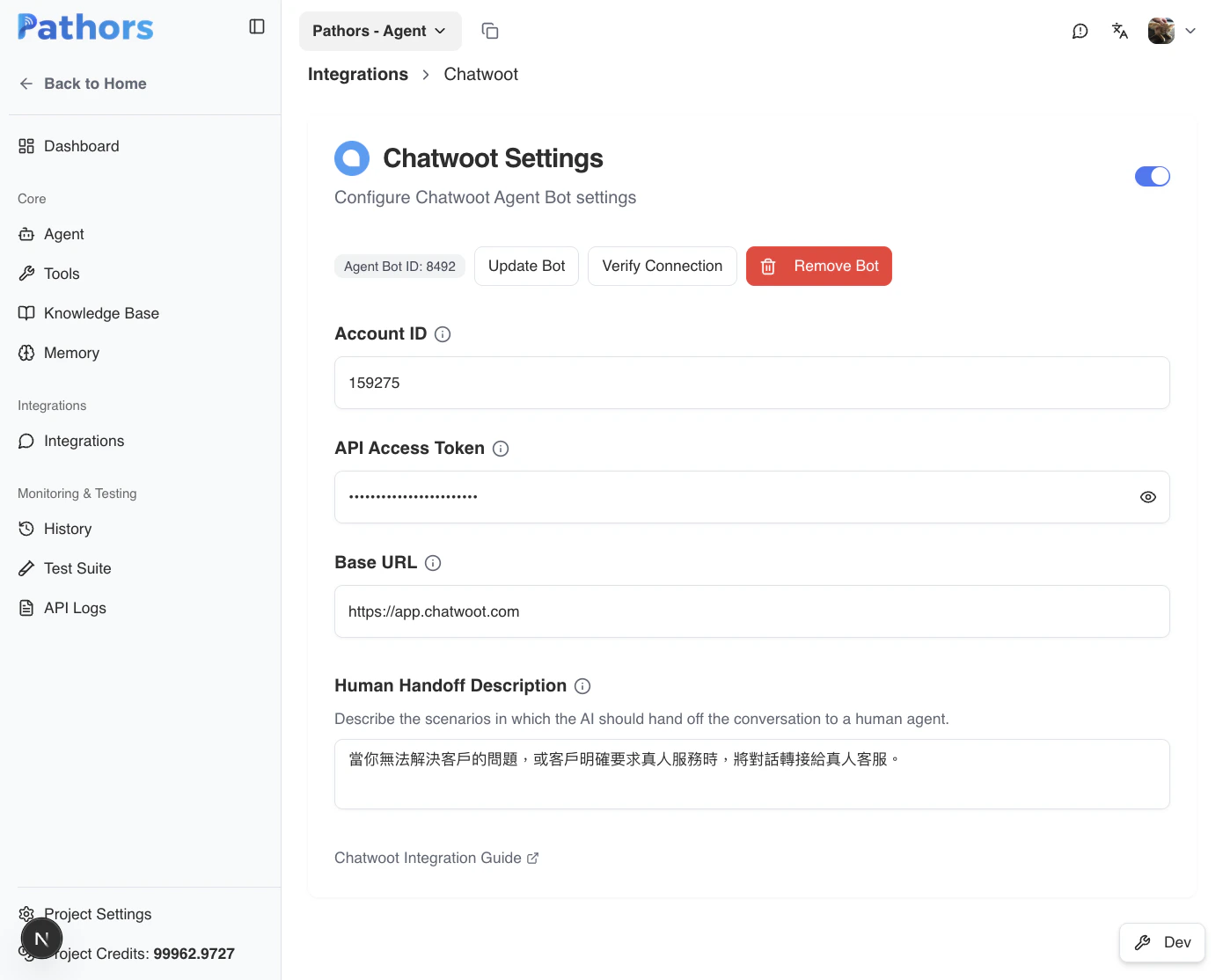
Pathors ships with a `transfer_to_human` tool that lets the AI hand the conversation to a live agent. You can tailor **when** it fires by editing the **Handoff Description** field.
## Step 3: Customize the Handoff Behavior (Optional)
Pathors ships with a `transfer_to_human` tool that lets the AI hand the conversation to a live agent. You can tailor **when** it fires by editing the **Handoff Description** field.
 The default description is a safe starting point. Refine it to match your
product — e.g., explicitly list topics the AI should never handle (legal,
refunds, VIP accounts) so the handoff fires consistently.
## Step 4: Create the Agent Bot
After your credentials are saved:
1. Click the **Create Bot** button at the top of the Chatwoot settings card
2. Pathors will automatically create an Agent Bot in your Chatwoot account
* The bot name matches your Pathors project name
* The webhook URL is configured automatically
3. Once created, a badge will display the **Agent Bot ID**
If you need to update the bot (e.g., after renaming your project), click **Update Bot**. This updates the bot name and webhook URL without creating a new one.
## Step 5: Assign the Bot to an Inbox
The Agent Bot needs to be assigned to a Chatwoot inbox to start receiving conversations.
1. In your Chatwoot dashboard, go to **Settings** > **Inboxes**
2. Select the inbox you want the bot to handle
3. Click the **Bot Configuration** tab
4. Under **Select an agent bot**, pick the bot that was just created (it will have your Pathors project name)
5. Click **Update**
The default description is a safe starting point. Refine it to match your
product — e.g., explicitly list topics the AI should never handle (legal,
refunds, VIP accounts) so the handoff fires consistently.
## Step 4: Create the Agent Bot
After your credentials are saved:
1. Click the **Create Bot** button at the top of the Chatwoot settings card
2. Pathors will automatically create an Agent Bot in your Chatwoot account
* The bot name matches your Pathors project name
* The webhook URL is configured automatically
3. Once created, a badge will display the **Agent Bot ID**
If you need to update the bot (e.g., after renaming your project), click **Update Bot**. This updates the bot name and webhook URL without creating a new one.
## Step 5: Assign the Bot to an Inbox
The Agent Bot needs to be assigned to a Chatwoot inbox to start receiving conversations.
1. In your Chatwoot dashboard, go to **Settings** > **Inboxes**
2. Select the inbox you want the bot to handle
3. Click the **Bot Configuration** tab
4. Under **Select an agent bot**, pick the bot that was just created (it will have your Pathors project name)
5. Click **Update**
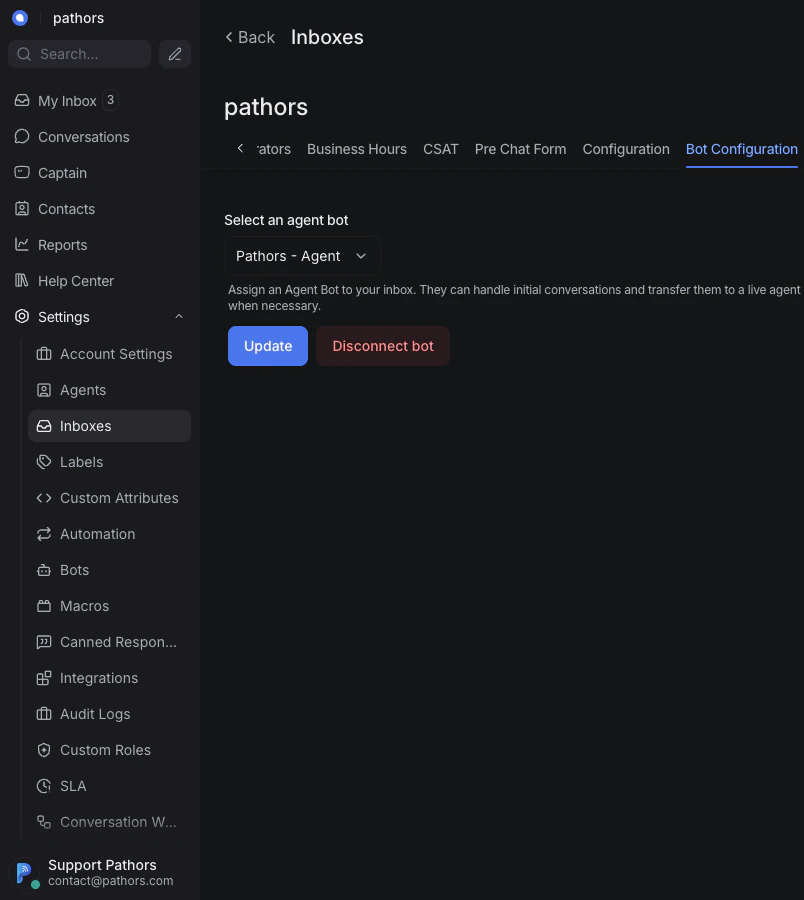 Each inbox can only have one Agent Bot assigned at a time. If you have
multiple inboxes, you can assign the same bot to each one.
## Step 6: Verify the Connection
1. Back in the Pathors Chatwoot settings page, click **Verify Connection**
2. If the verification succeeds, the integration is fully configured
3. Try sending a message to the inbox from a contact to confirm the bot responds
## Troubleshooting
### "Invalid API Access Token" error
* Ensure you copied the full token from your Chatwoot profile
* Verify that the token belongs to an account with API access
* Check that the Account ID matches the account the token belongs to
### "Agent bot with this name already exists" error
* Another bot with the same name already exists in your Chatwoot account
* Remove the duplicate from **Settings** > **Bots** in Chatwoot, or rename your Pathors project
### Bot is not responding to messages
* Verify the bot is assigned to the correct inbox (Step 5)
* Click **Verify Connection** to ensure the bot is still properly configured
* Check that the Pathors integration is toggled on
### "Agent bot not found" error during verification
* The bot may have been deleted from the Chatwoot side
* Click **Create Bot** to create a new one, then re-assign it to your inbox
## Related Resources
* [Chatwoot Agent Bot Documentation](https://www.chatwoot.com/docs/product/others/agent-bots)
* [Chatwoot API Reference](https://www.chatwoot.com/developers/api/)
Each inbox can only have one Agent Bot assigned at a time. If you have
multiple inboxes, you can assign the same bot to each one.
## Step 6: Verify the Connection
1. Back in the Pathors Chatwoot settings page, click **Verify Connection**
2. If the verification succeeds, the integration is fully configured
3. Try sending a message to the inbox from a contact to confirm the bot responds
## Troubleshooting
### "Invalid API Access Token" error
* Ensure you copied the full token from your Chatwoot profile
* Verify that the token belongs to an account with API access
* Check that the Account ID matches the account the token belongs to
### "Agent bot with this name already exists" error
* Another bot with the same name already exists in your Chatwoot account
* Remove the duplicate from **Settings** > **Bots** in Chatwoot, or rename your Pathors project
### Bot is not responding to messages
* Verify the bot is assigned to the correct inbox (Step 5)
* Click **Verify Connection** to ensure the bot is still properly configured
* Check that the Pathors integration is toggled on
### "Agent bot not found" error during verification
* The bot may have been deleted from the Chatwoot side
* Click **Create Bot** to create a new one, then re-assign it to your inbox
## Related Resources
* [Chatwoot Agent Bot Documentation](https://www.chatwoot.com/docs/product/others/agent-bots)
* [Chatwoot API Reference](https://www.chatwoot.com/developers/api/)