> ## Documentation Index
> Fetch the complete documentation index at: https://docs.pathors.com/llms.txt
> Use this file to discover all available pages before exploring further.

# Connect to Web Chat

> Learn how to quickly set up and use Pathors chat integration

## Overview

This guide will help you quickly set up and use Pathors' chat functionality, allowing you to embed a chat widget into your personal website.

## Prerequisites

* A Pathors account

## Detailed Steps

### Step 1: Set Up Pathors Integration

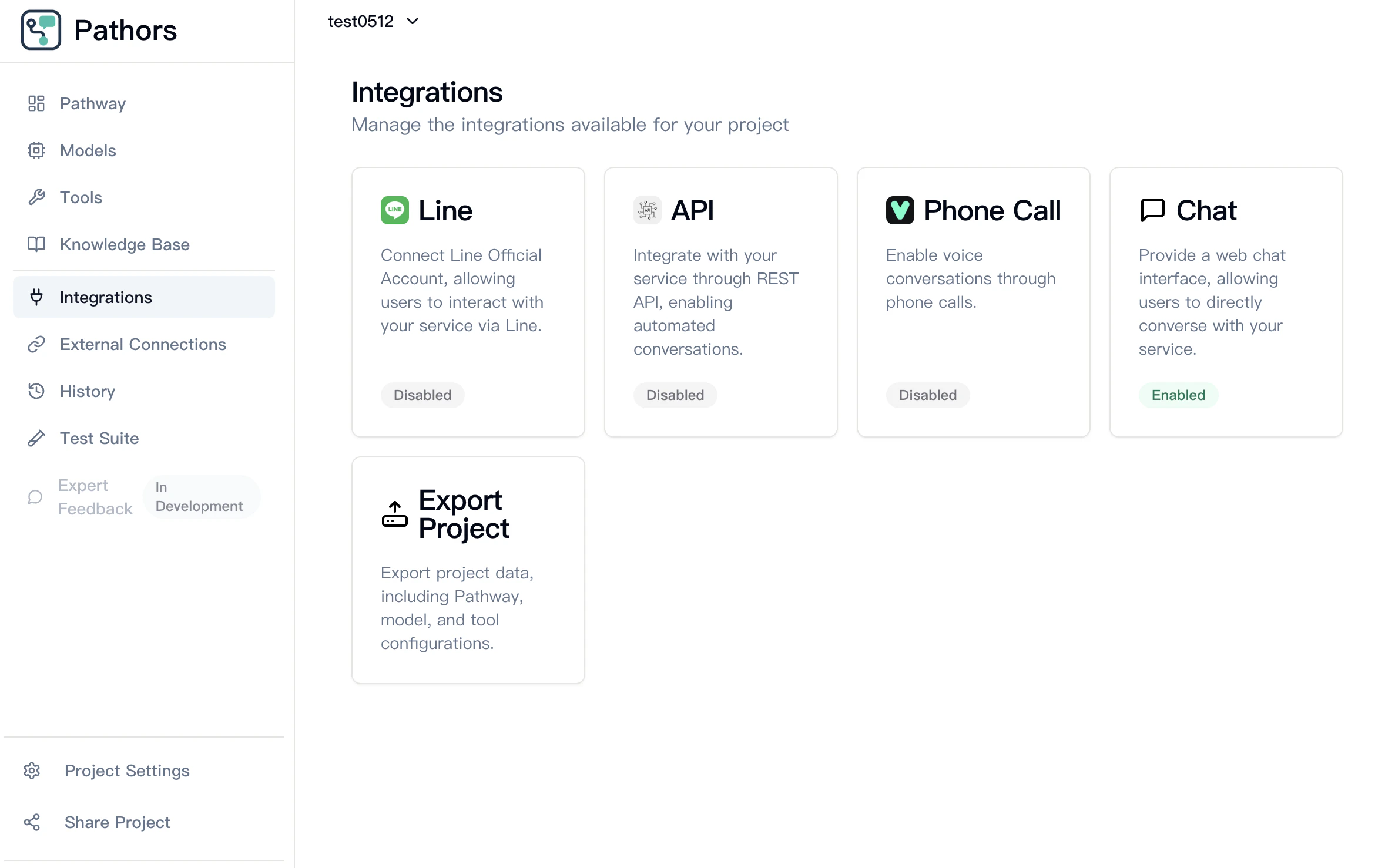
1. Open the Pathors Console
2. Navigate to the Integration page
3. Select the Chat integration option
<Frame>
  <img src="https://mintcdn.com/pathorstechnology/KdB-f_Xl4XvHDQAi/images/chat/step1-go-to-pathors-integration-page-select-chat.png?fit=max&auto=format&n=KdB-f_Xl4XvHDQAi&q=85&s=023076347e9f956f7e539e378a31ac46" alt="" width="2374" height="1478" data-path="images/chat/step1-go-to-pathors-integration-page-select-chat.png" />
</Frame>

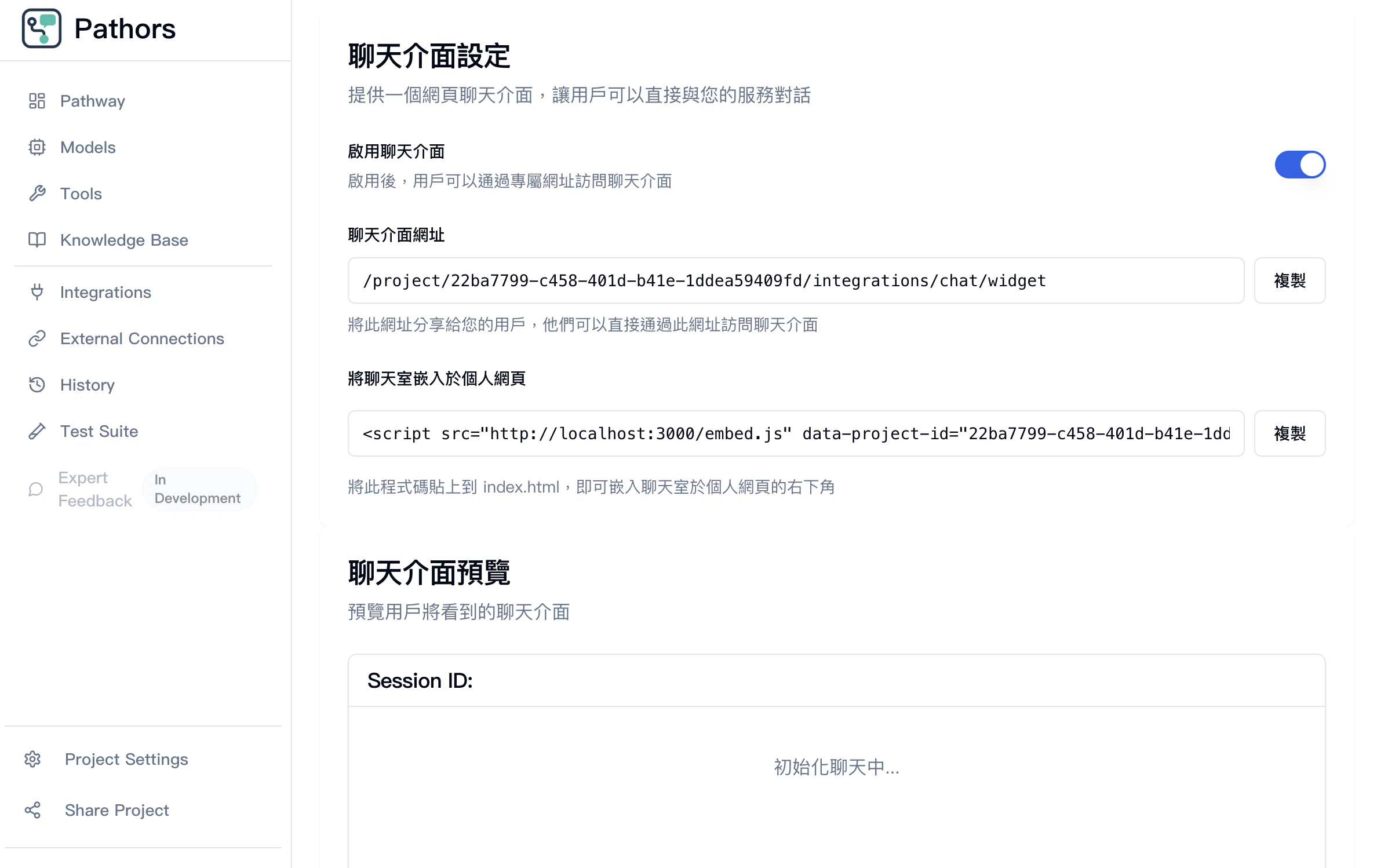
### Step 2: Copy the Code for "Embedding the Chatroom into Your Website"

1. Click the copy button on the right to copy the code
<Frame>
  <img src="https://mintcdn.com/pathorstechnology/KdB-f_Xl4XvHDQAi/images/chat/step2-enable-chat-integration-and-copy-embed-script.png?fit=max&auto=format&n=KdB-f_Xl4XvHDQAi&q=85&s=874d7c1cabdb2c0f53ba0188c32babfb" alt="" width="2376" height="1498" data-path="images/chat/step2-enable-chat-integration-and-copy-embed-script.png" />
</Frame>

### Step 3: Open Your Website and Paste the Code

**Note**: If you’re using Next.js, you’ll need to replace the `<script>` tag with React's built-in `<Script>` component.

1. Open your project and paste the copied code into `index.html`

<Frame>
  <img src="https://mintcdn.com/pathorstechnology/KdB-f_Xl4XvHDQAi/images/chat/step3-copy-script-code-to-file.png?fit=max&auto=format&n=KdB-f_Xl4XvHDQAi&q=85&s=d9ebb73188bf179d3784901814dc06fd" alt="" width="1924" height="652" data-path="images/chat/step3-copy-script-code-to-file.png" />
</Frame>

### Step 4: Run Your Site

1. Run your project
2. If the site runs correctly, a chat bubble icon should appear in the bottom right corner

<Frame>
  <img src="https://mintcdn.com/pathorstechnology/KdB-f_Xl4XvHDQAi/images/chat/step4-paste-script-into-website-and-open.png?fit=max&auto=format&n=KdB-f_Xl4XvHDQAi&q=85&s=2fae316d4a52017c79b31c3fd5166d71" alt="" width="2048" height="1464" data-path="images/chat/step4-paste-script-into-website-and-open.png" />
</Frame>

### Step 5: Click on the Chat Bubble Icon to Open and Use the Chat Window

<Frame>
  <img src="https://mintcdn.com/pathorstechnology/KdB-f_Xl4XvHDQAi/images/chat/step5-click-on-chat-bubble.png?fit=max&auto=format&n=KdB-f_Xl4XvHDQAi&q=85&s=7ddb02a977fad244d8c759ab078f4f5a" alt="" width="2364" height="1696" data-path="images/chat/step5-click-on-chat-bubble.png" />
</Frame>
