> ## Documentation Index
> Fetch the complete documentation index at: https://docs.pathors.com/llms.txt
> Use this file to discover all available pages before exploring further.
# Quick Start Guide
> Learn how to quickly sign in to Pathors and create your first workflow
This guide will help you quickly sign in to Pathors and create your first workflow.
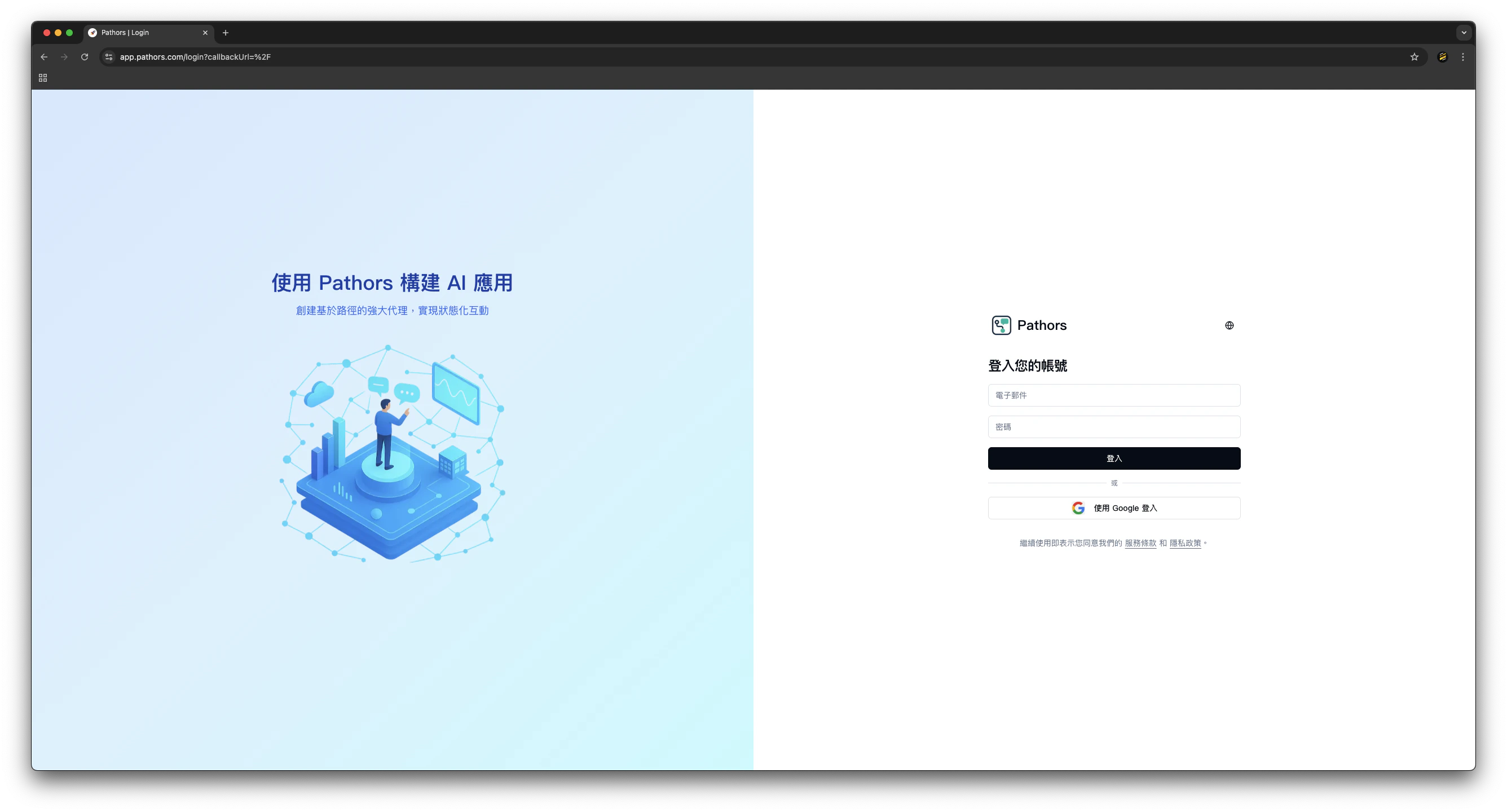
## Step 1: Sign In to Pathors
1. Go to the [Pathors login page](https://app.pathors.com/login)
2. Enter your email and password, or sign in with Google
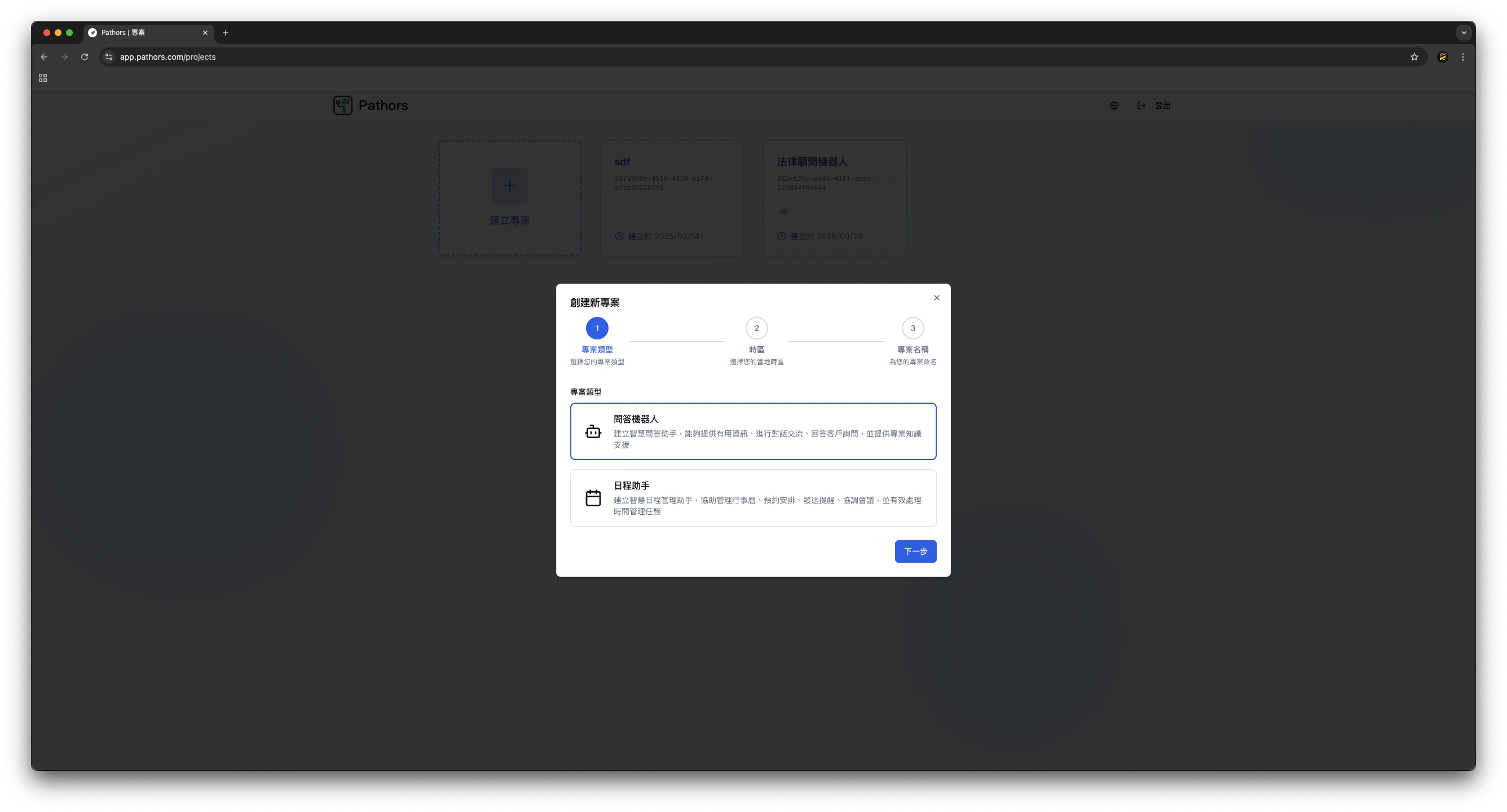
 ## Step 2: Create a Workflow
1. After signing in, you will see the dashboard
2. Click the "Create Workflow" button
3. Choose a default template or customize your own workflow as needed
## Step 2: Create a Workflow
1. After signing in, you will see the dashboard
2. Click the "Create Workflow" button
3. Choose a default template or customize your own workflow as needed
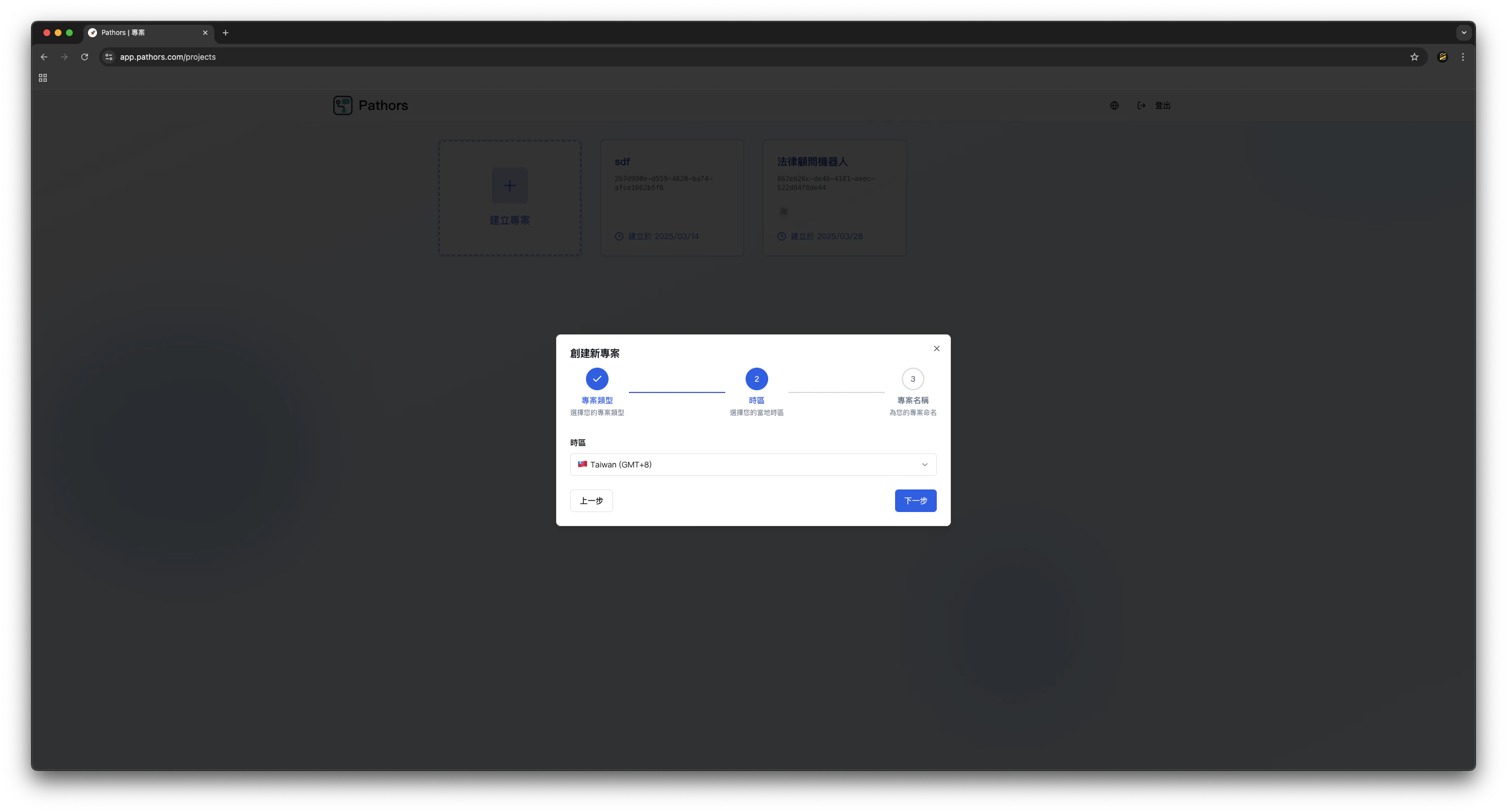
 ## Step 3: Select Timezone
1. When creating a new project, the system will prompt you to select a timezone.
2. Taiwan and many other global timezones are supported. Choose the one that fits your needs.
## Step 3: Select Timezone
1. When creating a new project, the system will prompt you to select a timezone.
2. Taiwan and many other global timezones are supported. Choose the one that fits your needs.
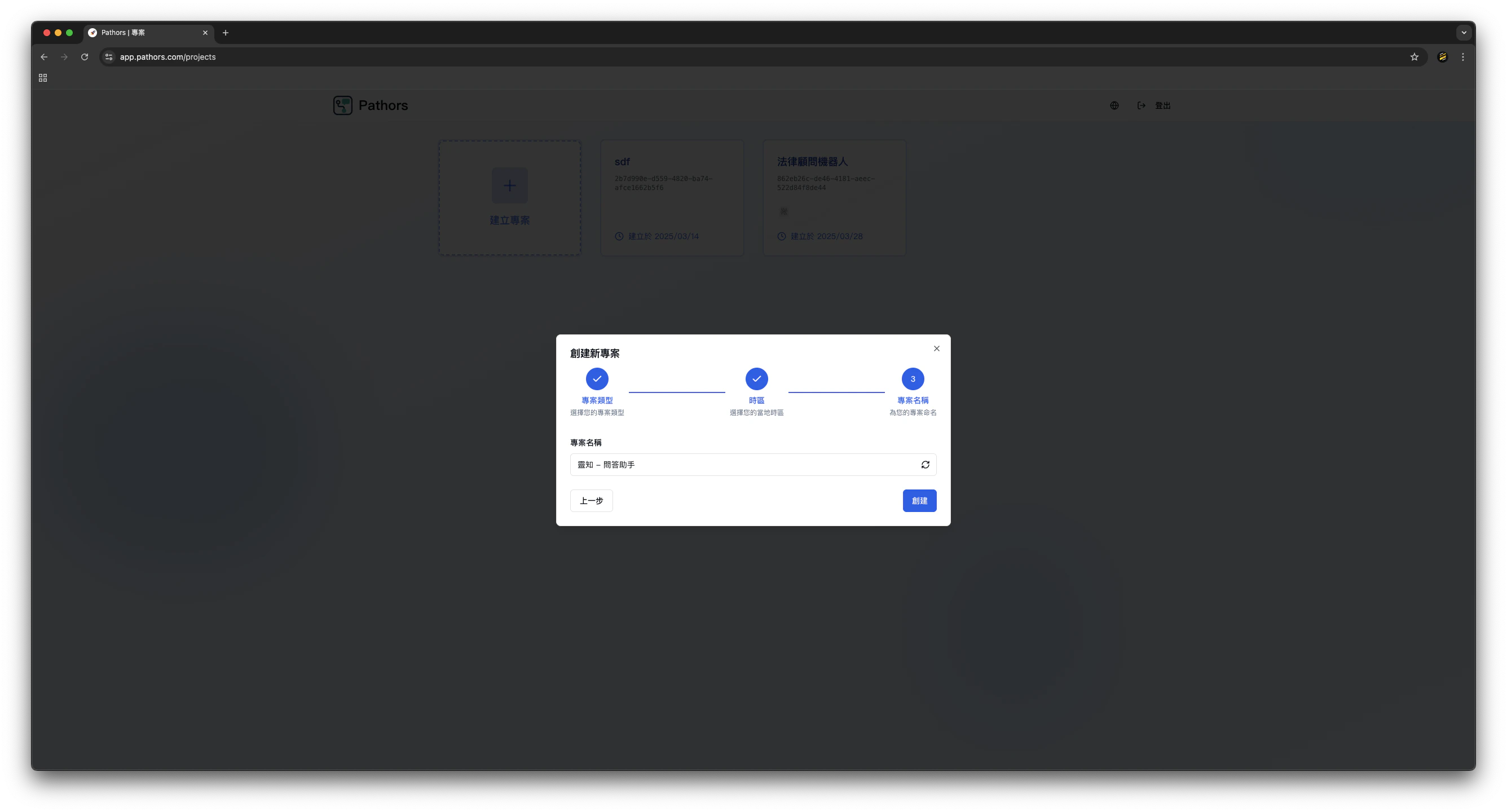
 ## Step 4: Name Your Project
1. Enter a project name. It is recommended to use a clear and descriptive name.
2. Click "Create" after naming your project.
## Step 4: Name Your Project
1. Enter a project name. It is recommended to use a clear and descriptive name.
2. Click "Create" after naming your project.
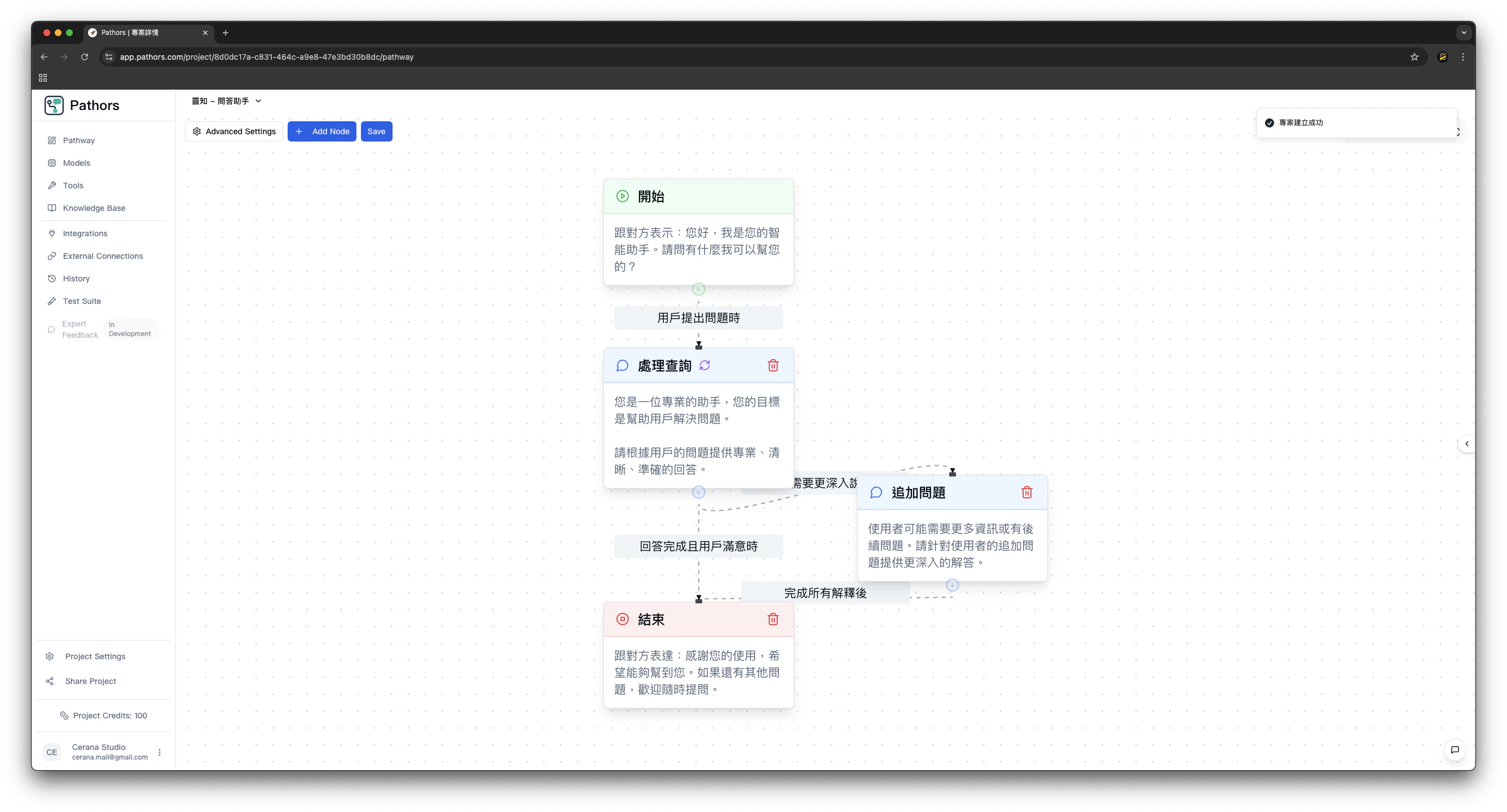
 ## Step 5: Workflow Created with Default Template
1. The system will automatically create a simple default template for you.
2. You will see your created workflow on the dashboard and can further edit it as needed.
## Step 5: Workflow Created with Default Template
1. The system will automatically create a simple default template for you.
2. You will see your created workflow on the dashboard and can further edit it as needed.
 ## Related Resources
* [Pathors Official Website](https://pathors.com)
* [Next: Create Conversational Agent](./pathors-tutorial-01-create-agent)
## Related Resources
* [Pathors Official Website](https://pathors.com)
* [Next: Create Conversational Agent](./pathors-tutorial-01-create-agent)